Lab 3: Repeatable Workflows
Track 2: Agentic Analytics · Day 2 breakout lab
Otto built your carbon + operations pipeline in Labs 1 and 2. The analysis is solid, the findings are verified, and you have an executive summary ready for your operations VP. There's just one problem: it's not repeatable yet. Some of your read components may have hardcoded dates, which means the optimization recommendations go stale the moment you stop running it manually — and you don't have automation in place to run it regularly.
This lab is about closing that gap — making the pipeline production-ready so it pulls fresh weather and carbon data every day, then wiring up the automation that keeps your scheduling recommendations current without you.
Before you start
- Complete Lab 1: Agentic Analysis
- Complete Lab 2: Verifying Agent Output
- You should have a working carbon + operations pipeline in your Workspace
The plan
- Update your read components to remove hardcoded dates
- Schedule the pipeline to run daily
- Add an alert for when carbon intensity spikes during a scheduled operation window
- Add an automation that alerts you when the pipeline fails
Step 1: Fix the read components
Before this pipeline can run on a schedule, it needs to pull fresh data dynamically — not whatever dates Otto happened to hardcode during the initial build.
Open Otto with Ctrl + I (or Cmd + I on Mac), start a new thread, and paste the following prompt:
I want to make sure I can run this flow everyday with updated weather and carbon data. Can you review these read components in my flow for production readiness. Check for hardcoded dates or static time windows. Fix anything you find and run the flow to confirm it still works.
What to look for
Otto will scan the read components and update anything that's static — date ranges, snapshot parameters, any filters tied to a specific point in time. After each update, it will run the component to confirm the data is still coming through correctly.
- Check the before/after: Otto should show you what it changed. Verify the new code uses dynamic dates (like
datetime.now()or relative time calculations) instead of hardcoded values. - Confirm the flow still runs: After the updates, Otto should run the flow to make sure everything works end-to-end. If it doesn't, tell Otto what failed.
Step 2: Schedule the pipeline
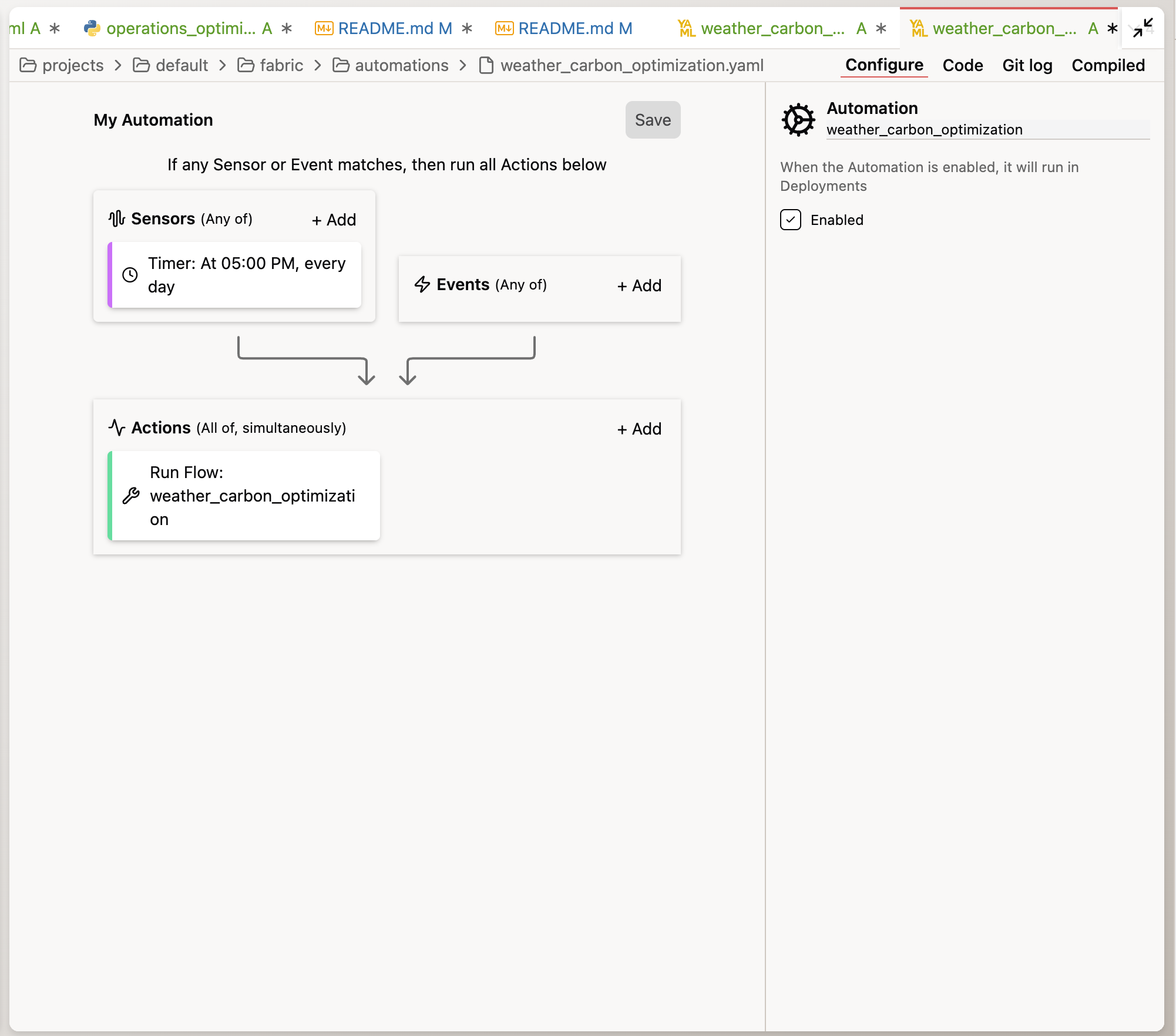
With the read components fixed, ask Otto to create an automation — a configuration file that tells Ascend to run your pipeline on a schedule, send alerts, or trigger Otto to take action when something happens.
Otto handles the details for you. When you ask it to create an automation, it writes a YAML configuration file (a structured text format commonly used for configuration) and saves it in your project. You don't need to write or edit YAML yourself — just describe what you want in plain English and Otto will create it.
Fresh carbon data every morning means fresh scheduling recommendations before the first shift starts:
Create an Automation for this Flow to run daily at
midnight UTC.
Otto will create the schedule configuration. You can find this file under the automations/ folder in your project.
Workspaces vs Deployments
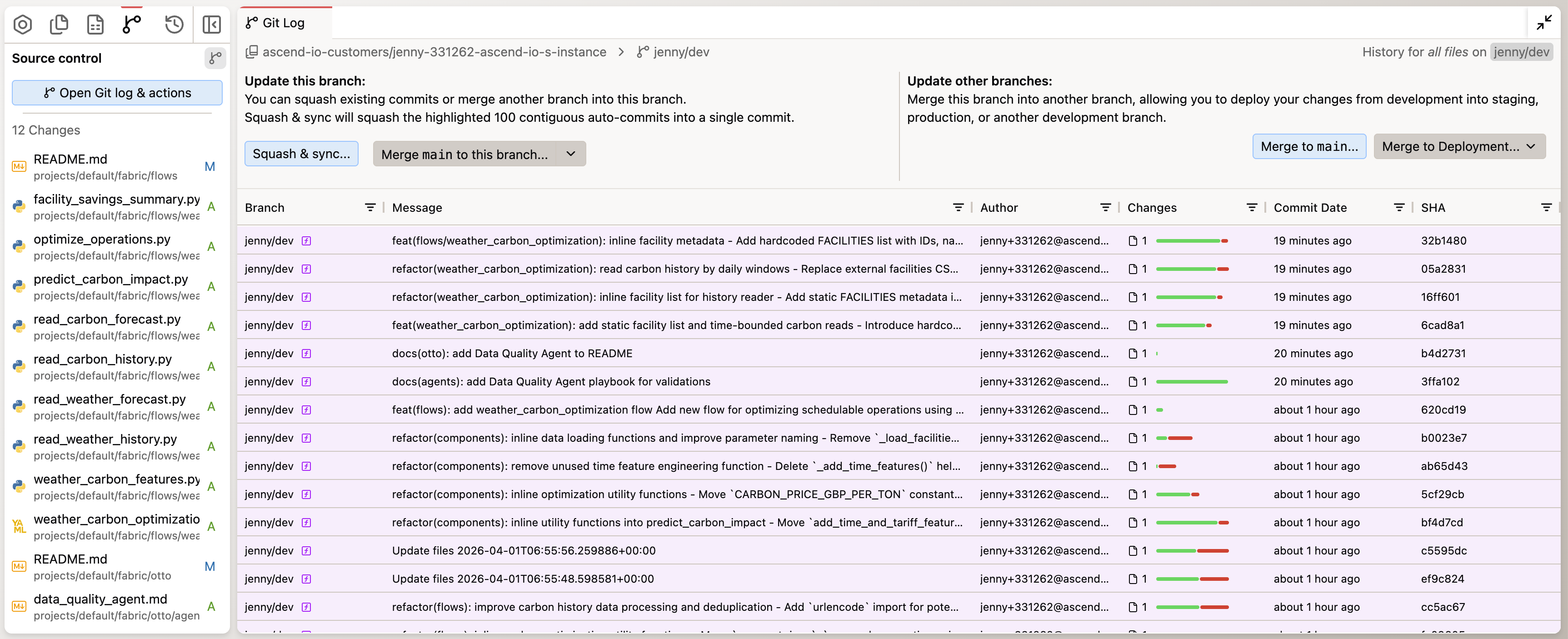
You've been working in a Workspace — a development sandbox where you build and test pipelines without affecting the data the business uses to run their operations. But automations (schedules, alerts) only run in Deployments — the production environment where your pipelines operate on real data on an ongoing basis.
Think of it like this: your Workspace is where you develop and test. A Deployment is a where your work runs for real, producing the data that actually populated the dashboard the business uses to make decisions. When you've tested and reviewed your work in the Workspace and are ready to run the pipelines on a regular schedule, you merge your Workspace changes to a Deployment — similar to merging a feature branch to main in Git in software development.
In your trial environment, you can create a Deployment by going to Settings → Projects → Add Deployment. Once created, use the Source Control panel in your Workspace to merge your changes to the Deployment. After that, your automations will run on their defined schedules.
Automations only run in Deployments, not Workspaces. In your trial environment, you can add a new Deployment and merge your current changes in your Workspace to the Deployment to run the pipeline on a schedule.
Step 3: Add a carbon intensity threshold alert
The pipeline runs daily. But what about days when the model predicts a large carbon spikes during a scheduled operation? You want to know when conditions change significantly so you can take action.
Create a separate Automation (don't modify the daily schedule) for this
flow that triggers on flow run successes. The automation should:

1. Run Otto to review the carbon intensity forecast for the next 7 days
2. When any schedulable machine is currently scheduled to run during a
   high carbon intensity window (top 25% of forecasted hours), send me
   an email
3. The email should include which machines are affected, which facility
   they're in, what the current and optimal time windows are, and the
   projected savings from rescheduling
This gives your operations team actionable, real-time intelligence — not just a static weekly report, but a dynamic alert system that flags the highest-impact rescheduling opportunities as conditions change.

You've completed Lab 3 — and the entire bootcamp track!
By the end of this lab, you should have:
- Updated your read components to pull fresh data dynamically on every run
- Scheduled the pipeline to refresh daily at midnight UTC
- Set up an automated alert for when carbon intensity spikes during scheduled operations
- Set up automated failure alerting with Otto's diagnosis
You started this track asking Otto to build a pipeline in a chat window. You're ending it with a production-ready system that pulls live weather and carbon data, cross-references it with your 125-machine manufacturing footprint, identifies the scheduling changes that save the most money and carbon, and tells you exactly when conditions change enough to warrant action. All without you lifting a finger after today.
That's the difference between an analyst who does analysis and one who builds analysis infrastructure. You just became the second kind.
Ask a bootcamp instructor or reach out in the Ascend Community Slack.
Next steps
Head to Wrapping Up to submit your lab work and claim your gift card.
Questions?
Reach out to your bootcamp instructors or support@ascend.io.