Hands-on lab: Agentic Data Analytics with dbt Core


Build and orchestrate dbt Core pipelines with agents on Ascend.
This feature is in Public Preview. Expect changes and note that standard SLAs don't apply. Refer to our release stages to learn more.
The plan
In this lab, we will:
- Sign up for Ascend
- Build your first data pipeline with Otto
- Run the Jaffle Shop dbt project
- View changes in source control
- Create a Deployment for production
- Deploy changes to production
- Run your pipeline in production
- Automate your pipeline with Otto
- (Advanced) Use your own DataOps agents
- (Advanced) Bring your own dbt project
Part 1: Sign up for Ascend
Go to https://app.ascend.io and click Start Your Free Trial.
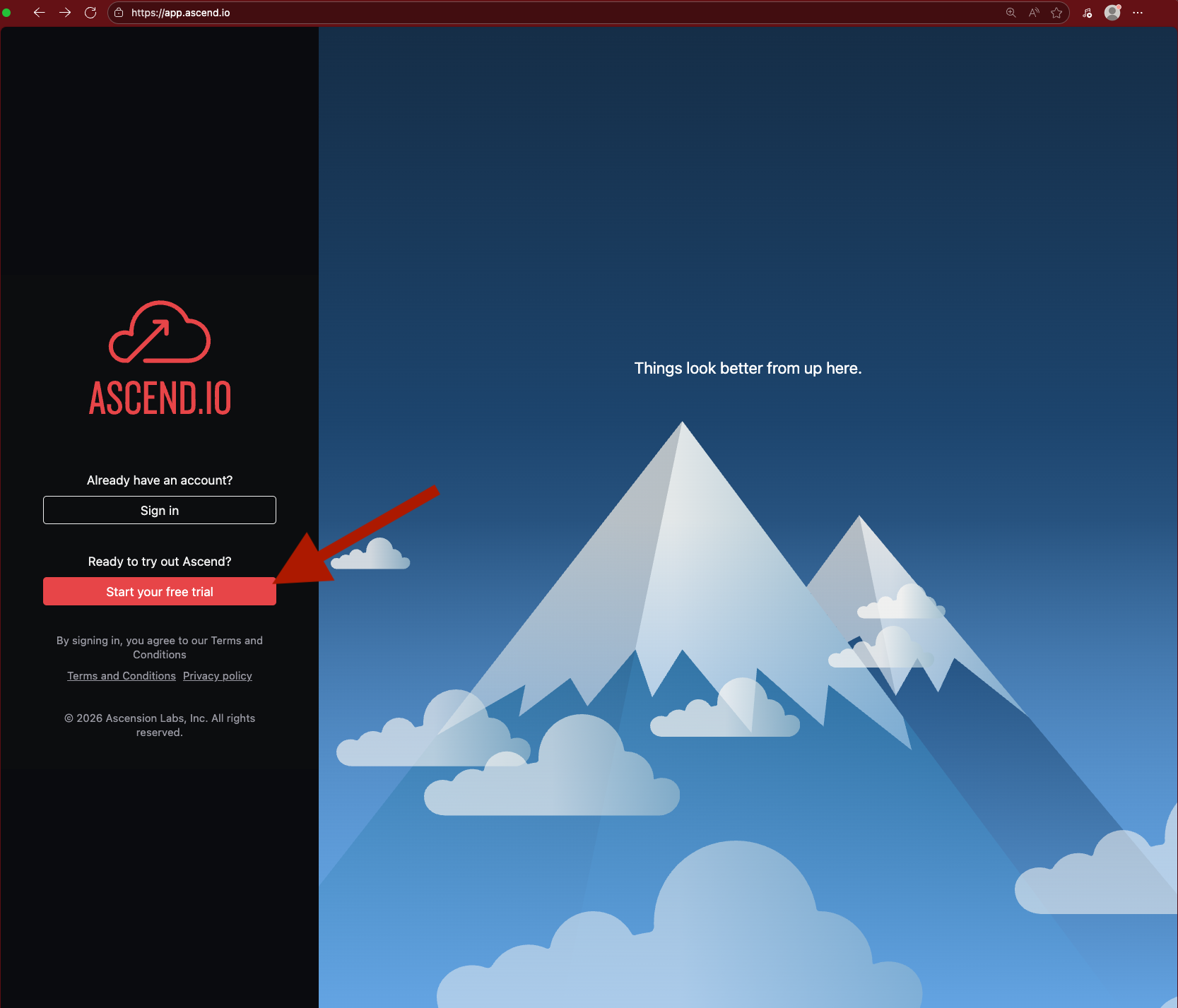
Fill out the signup form to create your account.
You must use a work email address. Common personal email domains like @gmail.com are disallowed.
Join us for the Agentic Data & Analytics bootcamp next week! We'll have the work email restriction above lifted for bootcamp participants.

Check your email for a verification message from support@ascend.io. Click to accept the invite and create a password or sign in with Google SSO.
Ask us live or email support if you don't receive the email within a few minutes.

Part 2: Build your first data pipeline
- Onboarding screen
- From your Workspace
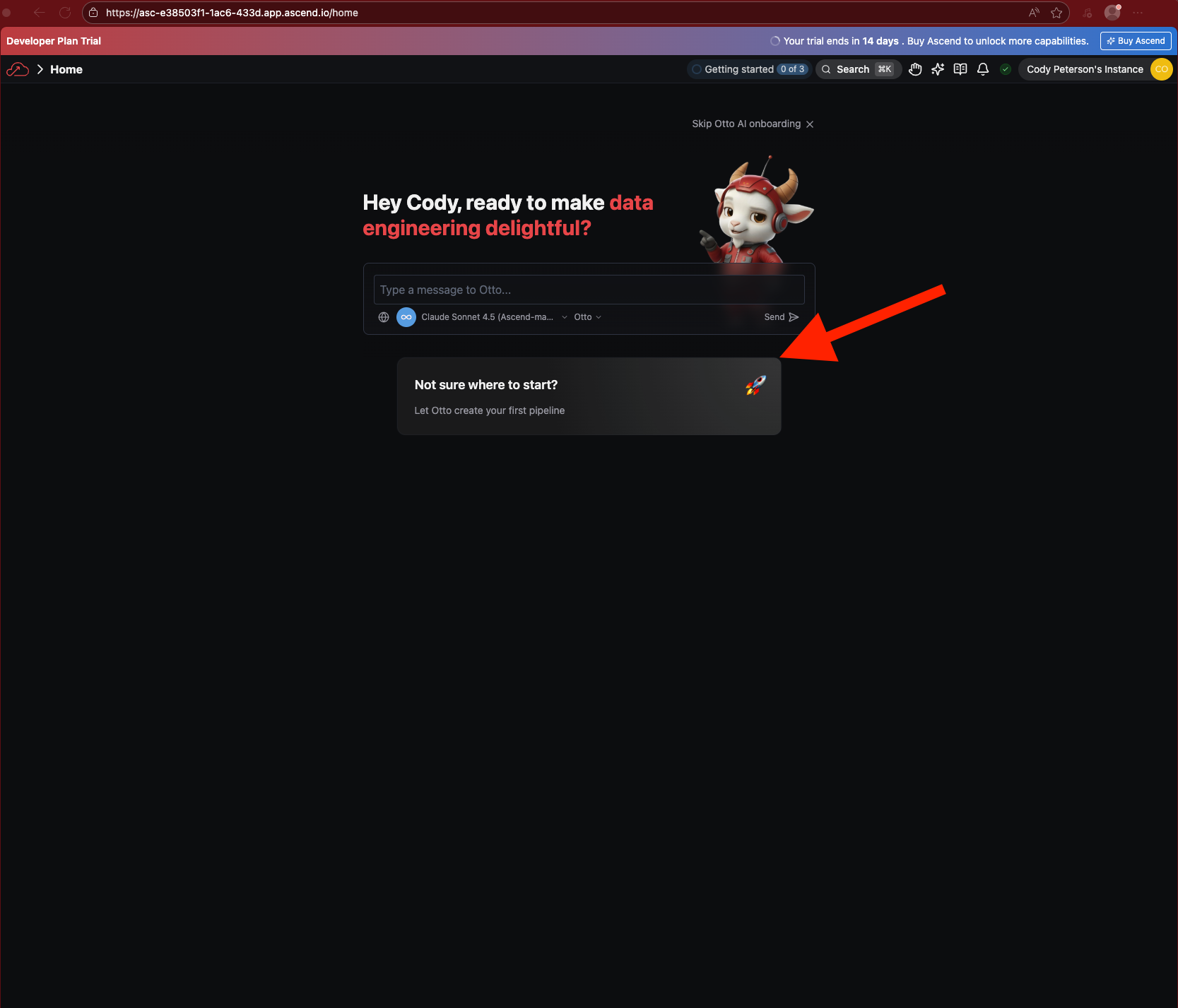
Once signed in, you'll see the home page. Click Not sure where to start? to let Otto build your first pipeline. If you miss this, you can always trigger Otto building your first data pipeline from your Workspace by simply asking.
Otto will create a sample Flow. Watch as the pipeline builds and runs automatically.
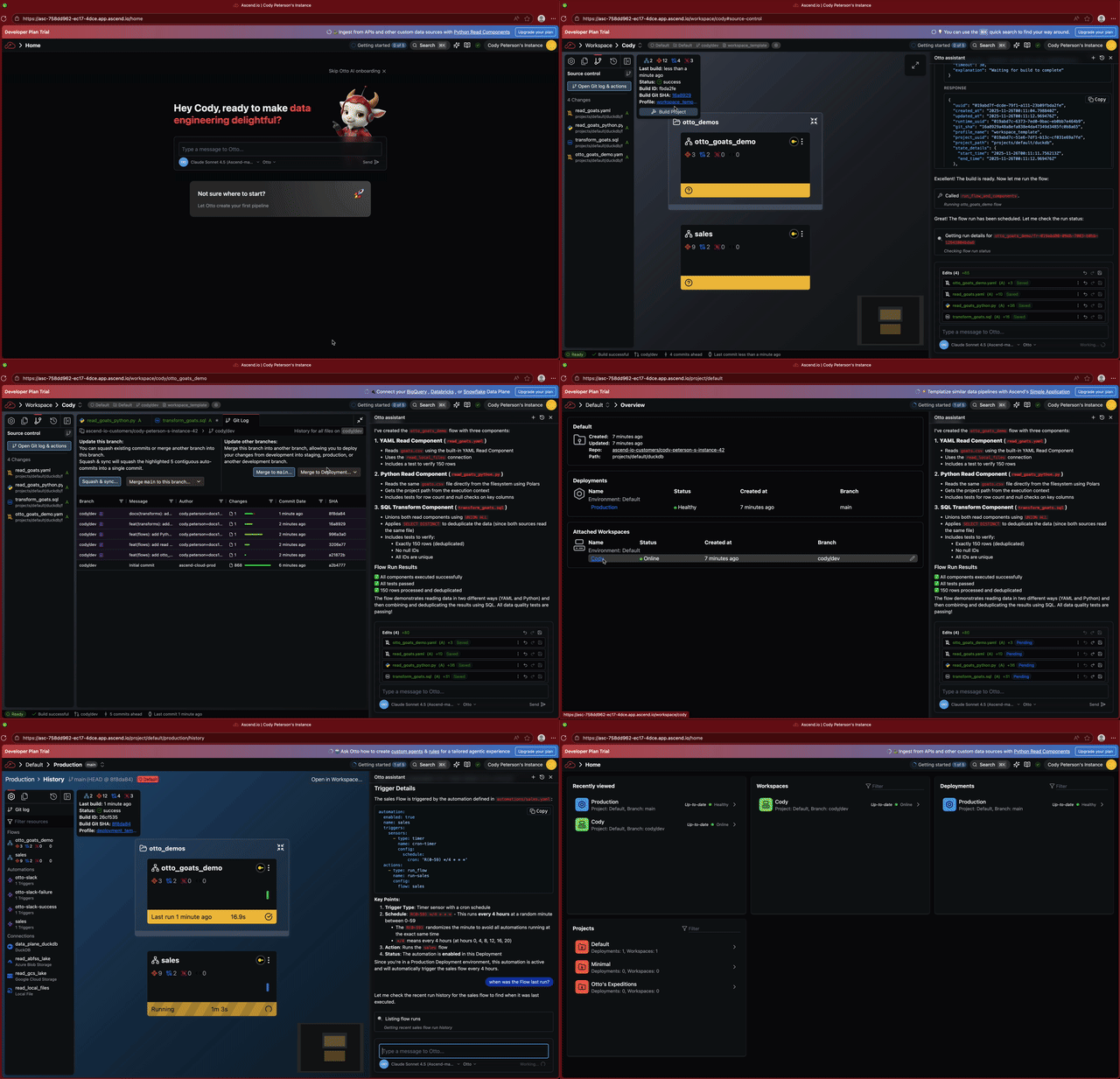
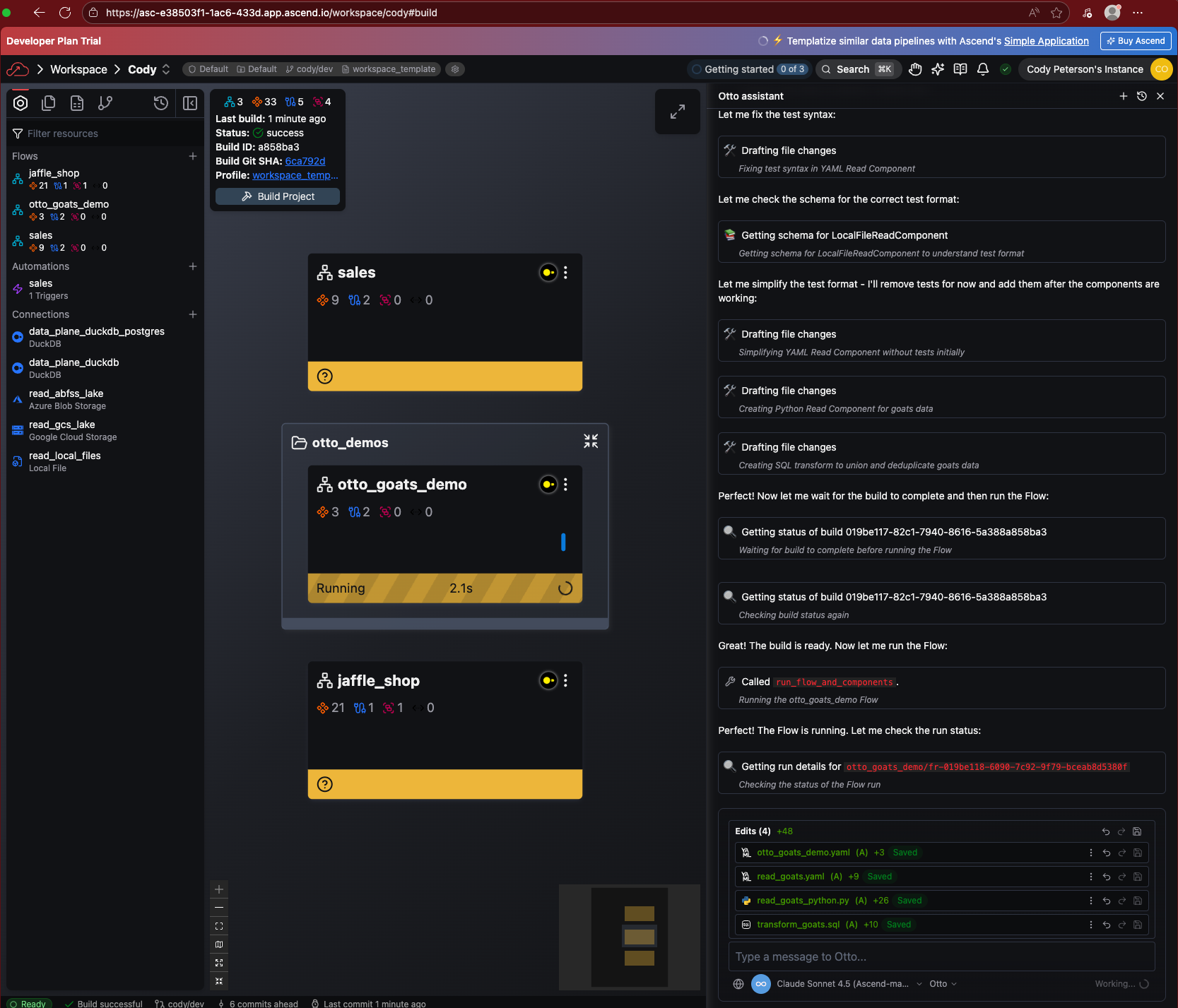
At the end, you should see a green Flow run.
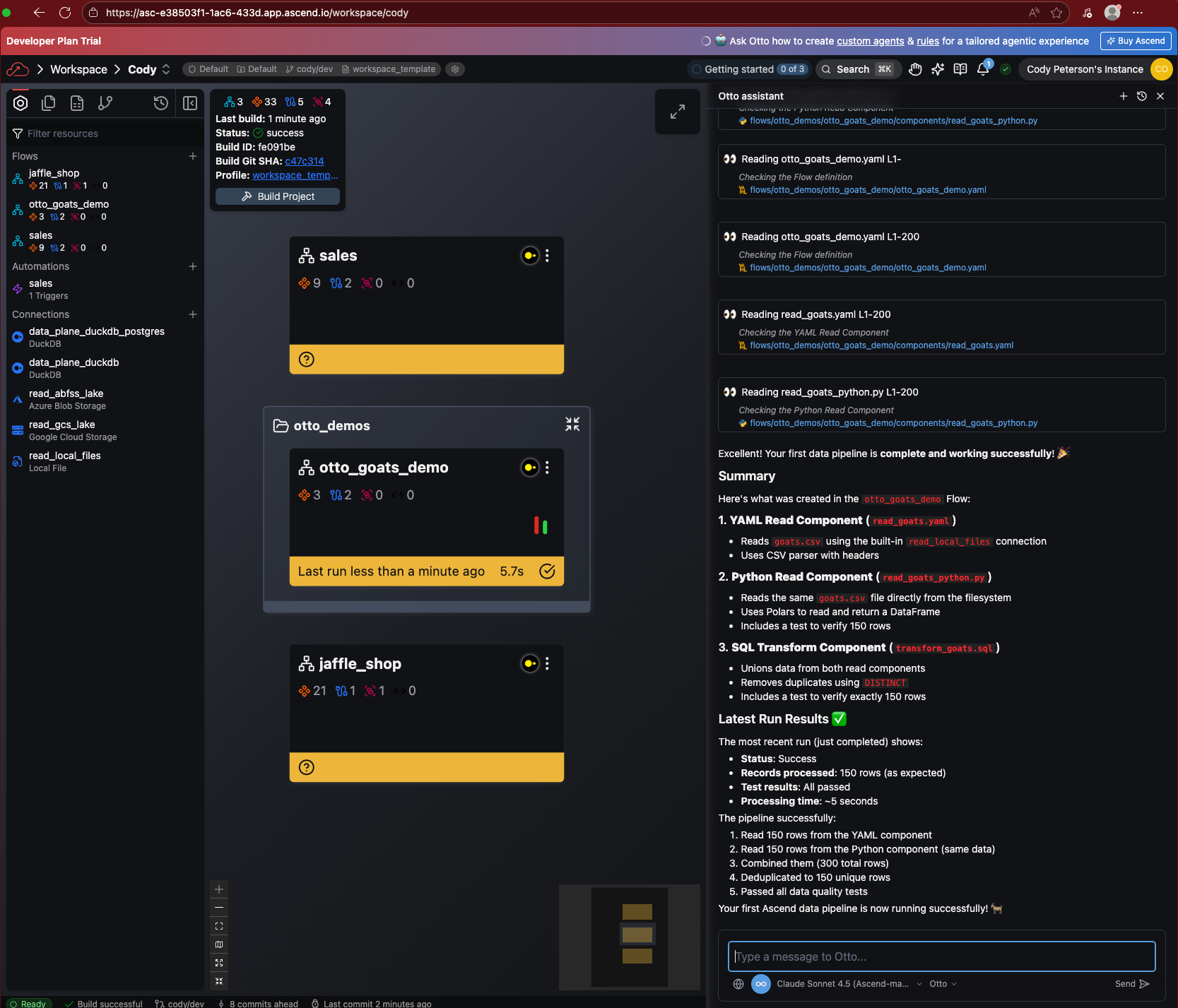
If you don't see the onboarding button, click into your Workspace (named after your organization).

Open Otto with Ctrl + I (or Cmd + I on Mac) and ask:
Create my first data pipeline!
Otto will build a sample Flow. Watch as it runs automatically.
Once complete, all Components show a green success state.
Agents, including Otto, make mistakes, but tend to iterate toward success. If you get a failed build or Flow run, let Otto fix it!
Part 3: Run Jaffle Shop
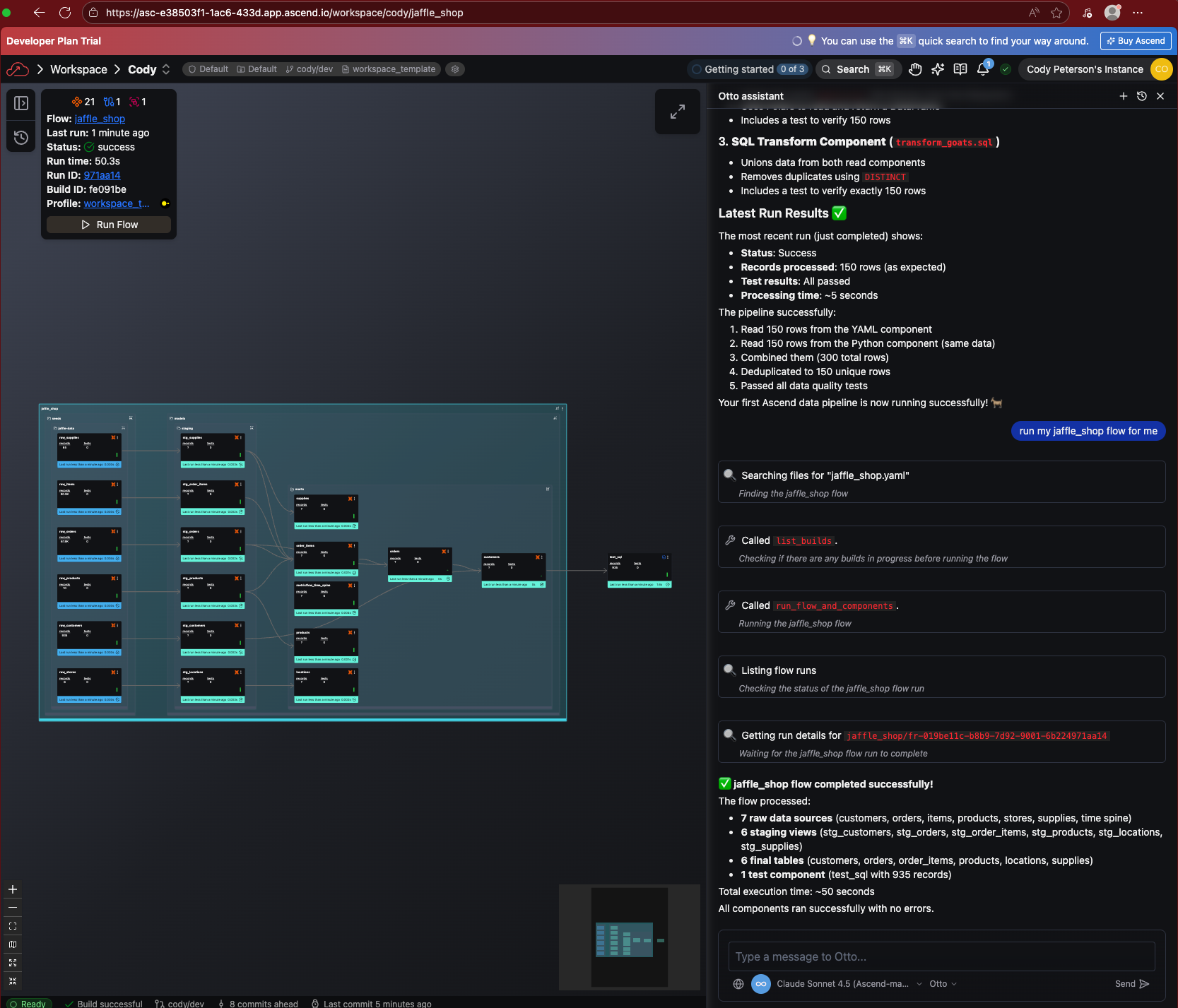
Now let's run a dbt project. The Jaffle Shop is included in your Default Project. You should already see it on the Super Graph. Either click on the context menu toward the top right of the Flow card and hit Run > Entire Flow, or just ask Otto to run it for you!
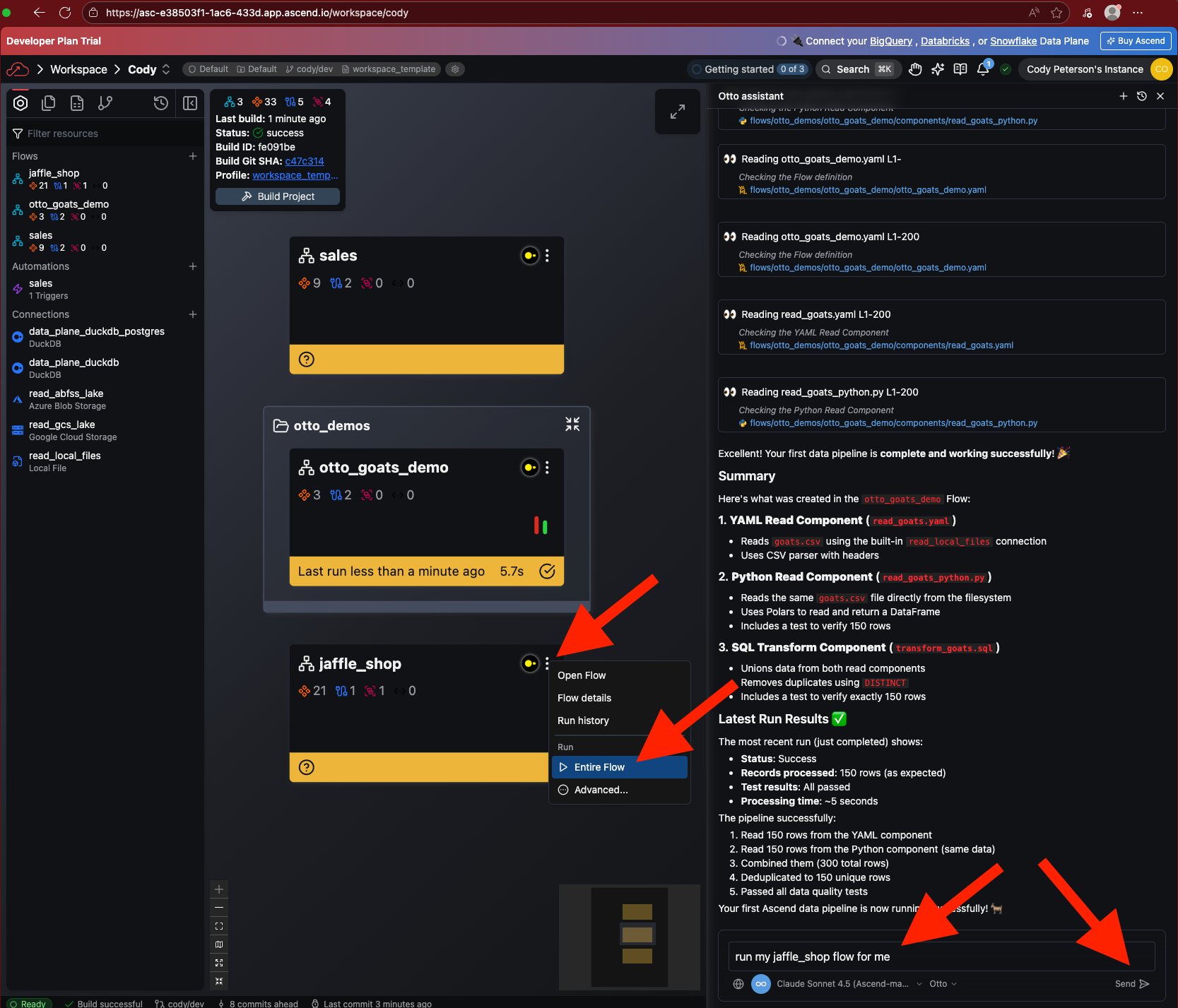
You can double click into the Flow card to see the Flow Graph. The run should take about a minute to complete.
Part 4: View changes in source control
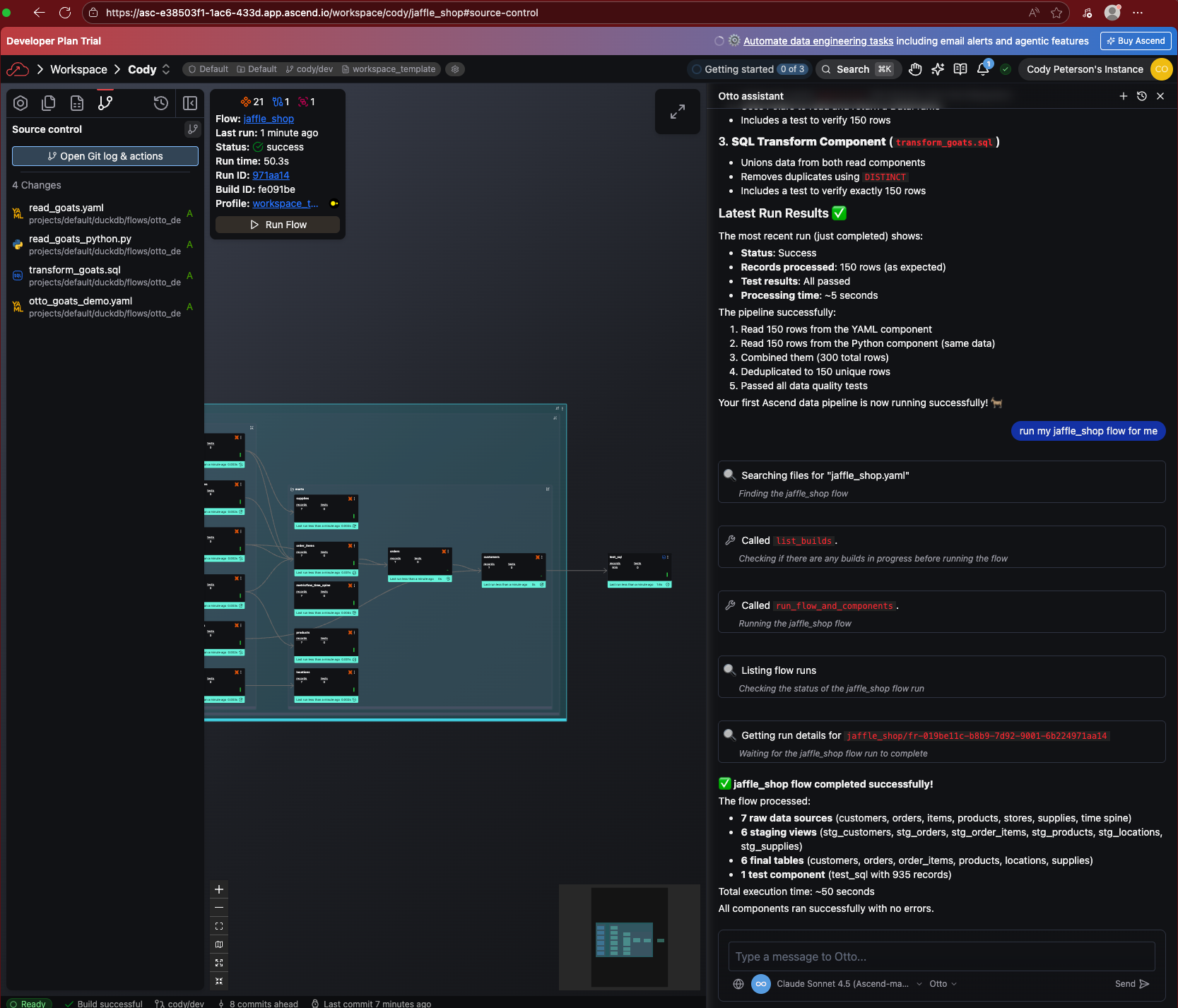
Ascend uses GitOps for version control. Open the Source Control panel from the left toolbar.
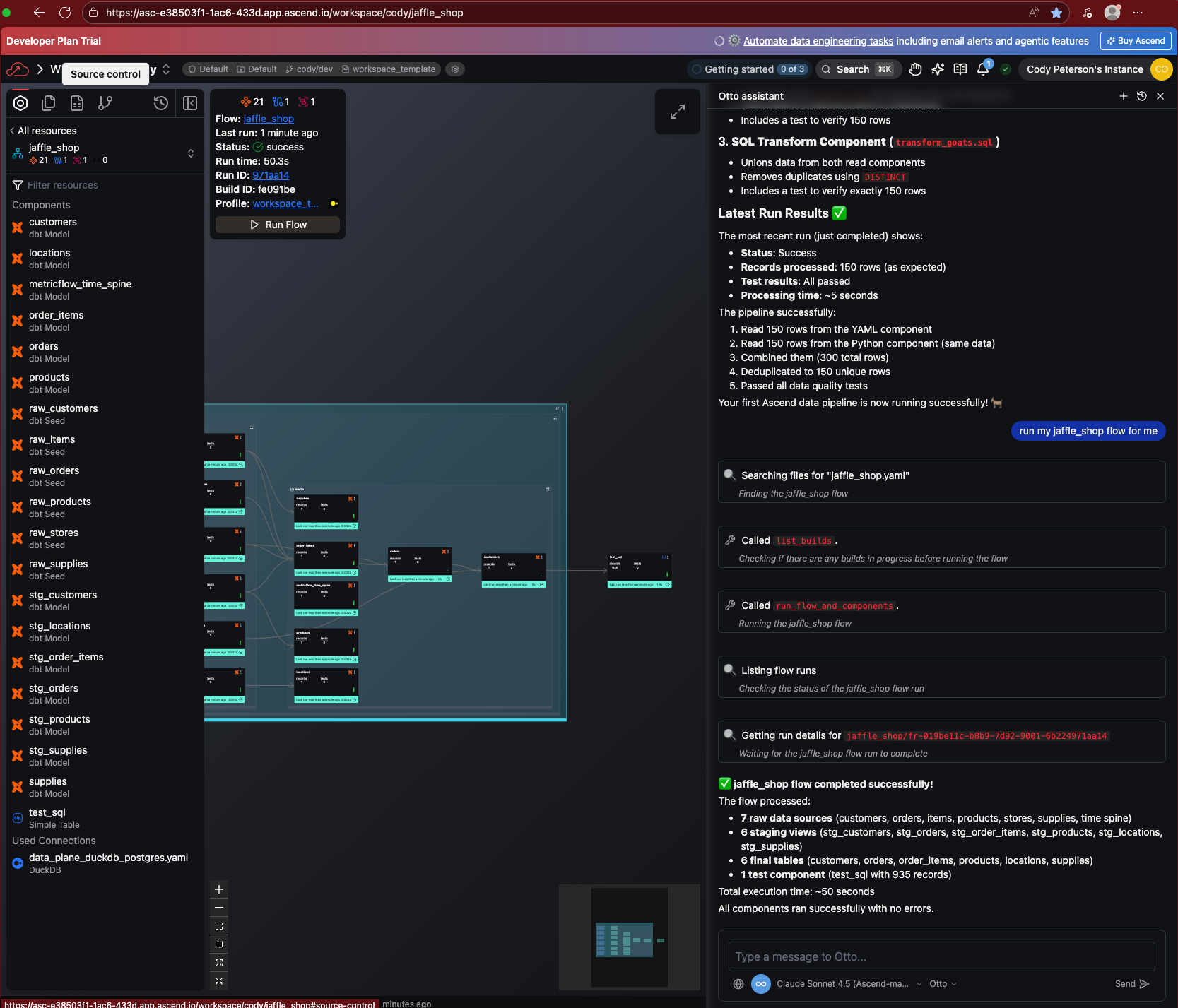
Then click on Open Git log & actions.
Here you'll see the commit history. Notice Otto wrote commit messages for you as your first data pipeline was built!
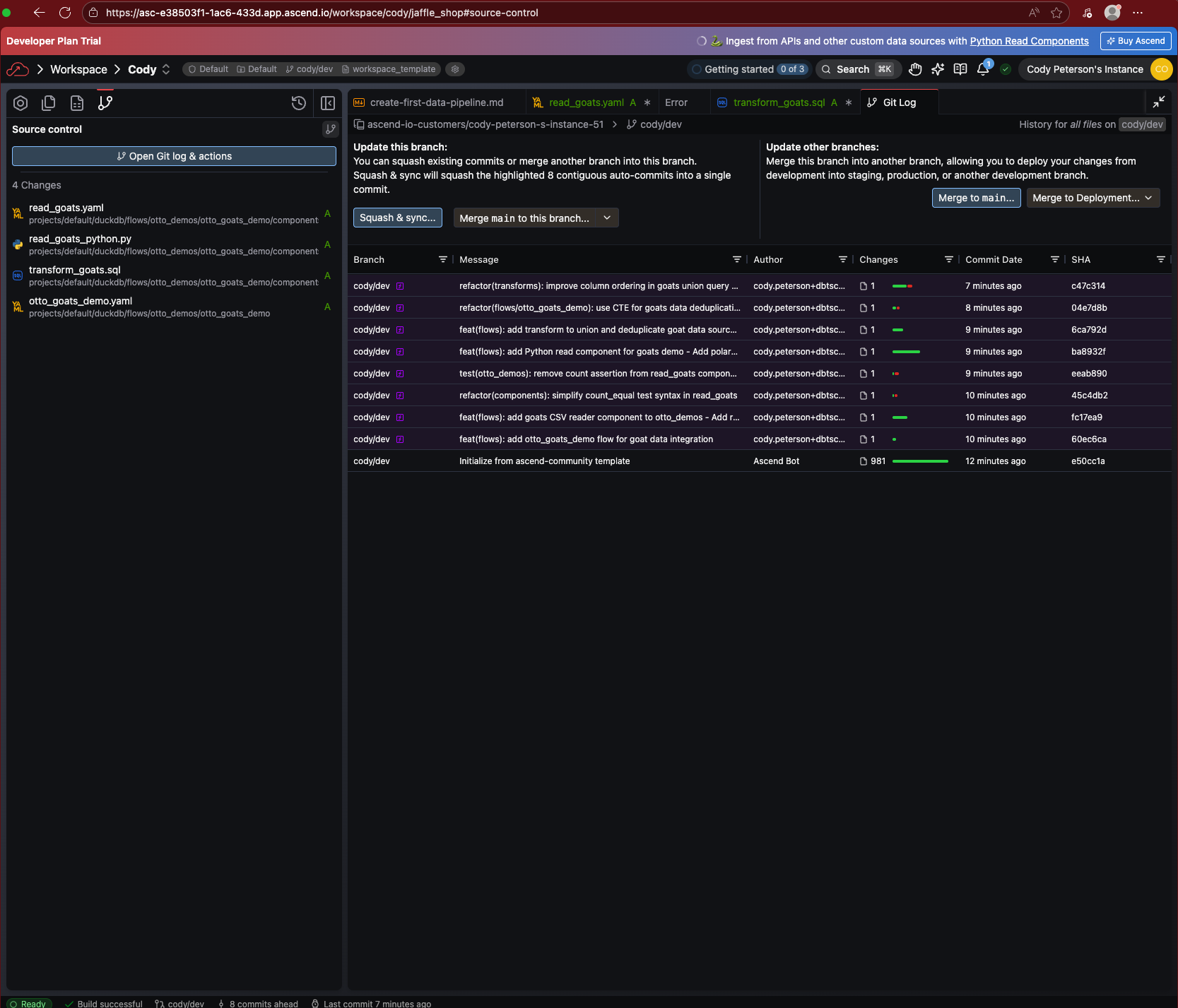
Before we merge these changes into main, we'll create a Deployment to run our Flows regularly in production through Automations.
Part 5: Create a Deployment
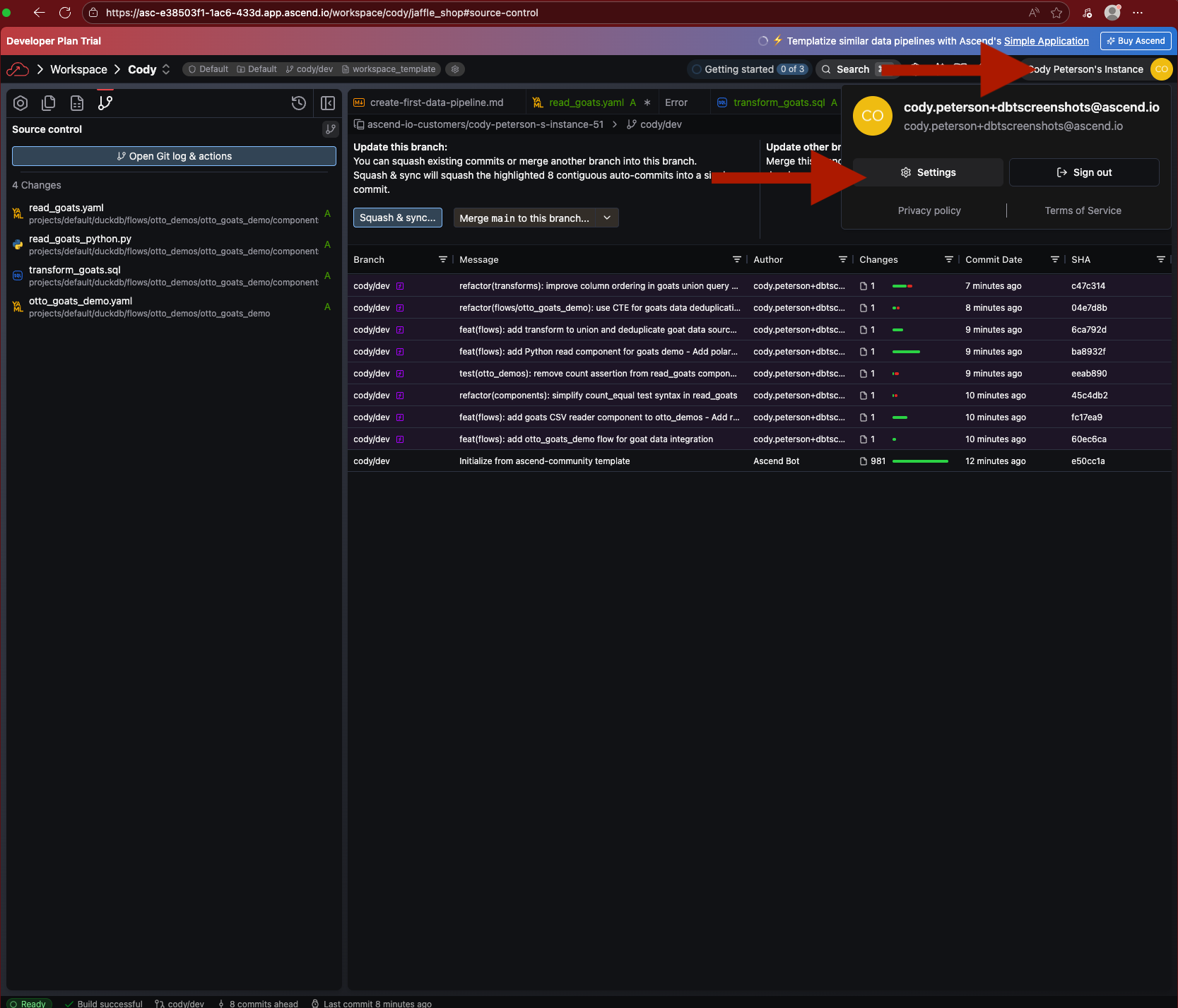
Navigate to Settings from your profile menu.
Go to the Projects tab and click the Default Project.
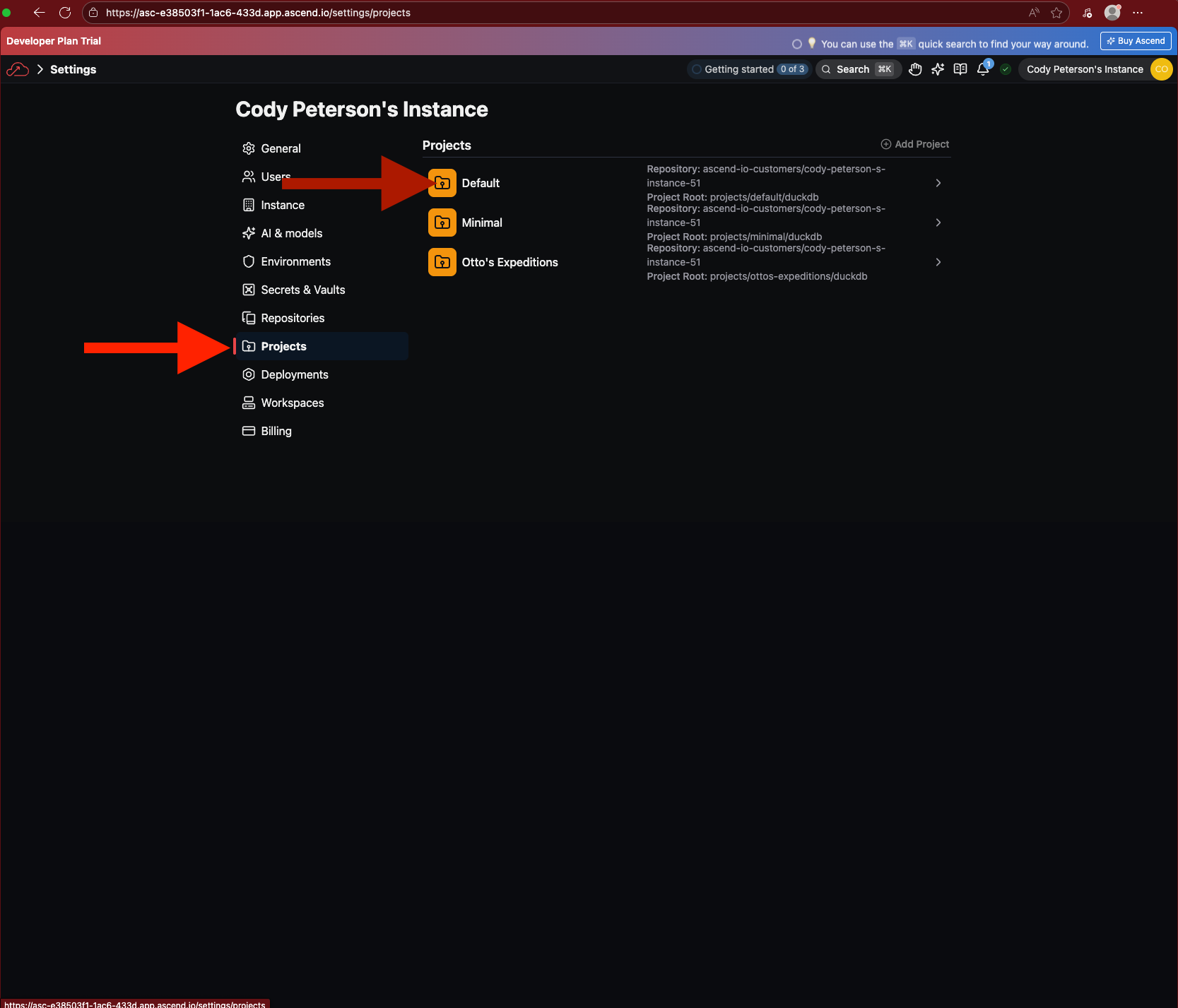
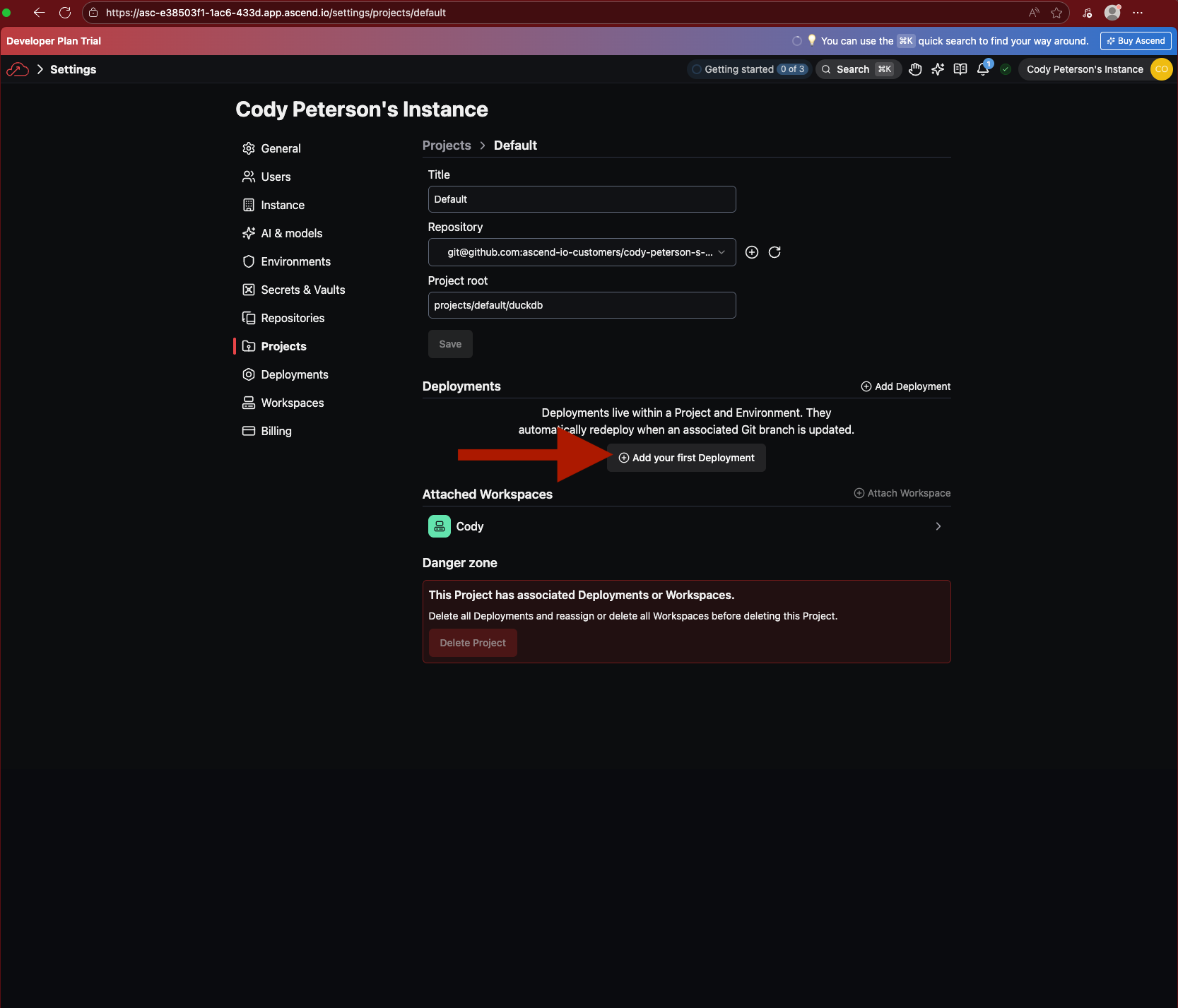
Click to Add your first Deployment.
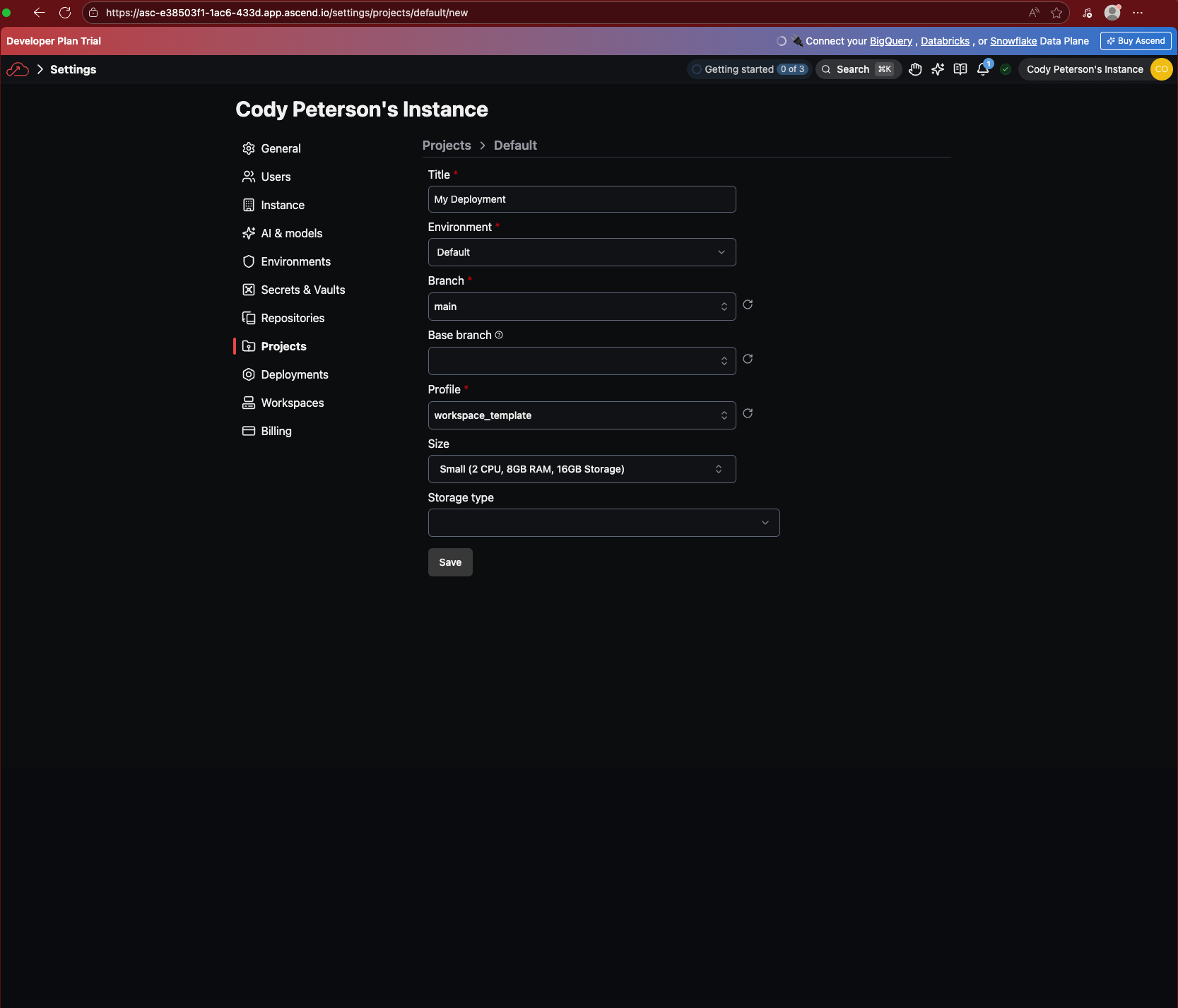
Give it a name (e.g., "Production"), select a branch (e.g. main), and choose a Profile (deployment_template).
Navigate into your Deployment. You can then click Explore build toward the top left to see the Super Graph.
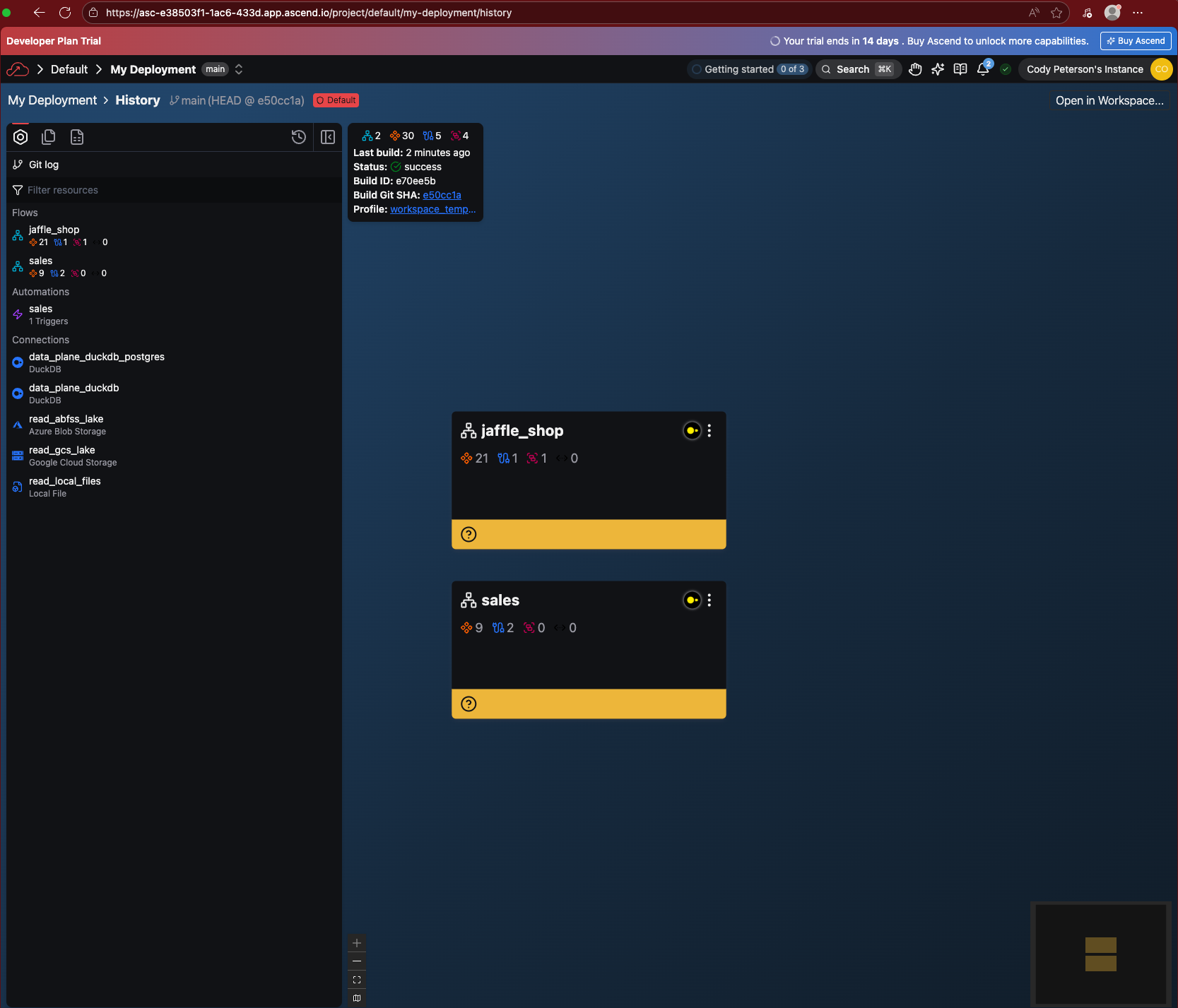
The demo Flow Otto created earlier is missing! This is because we haven't deployed our changes yet. Head back to your Workspace (through Settings or the home page) to merge your changes.
Part 6: Deploy changes
Return to your Workspace and open the Source Control panel. Click Merge to Deployment.
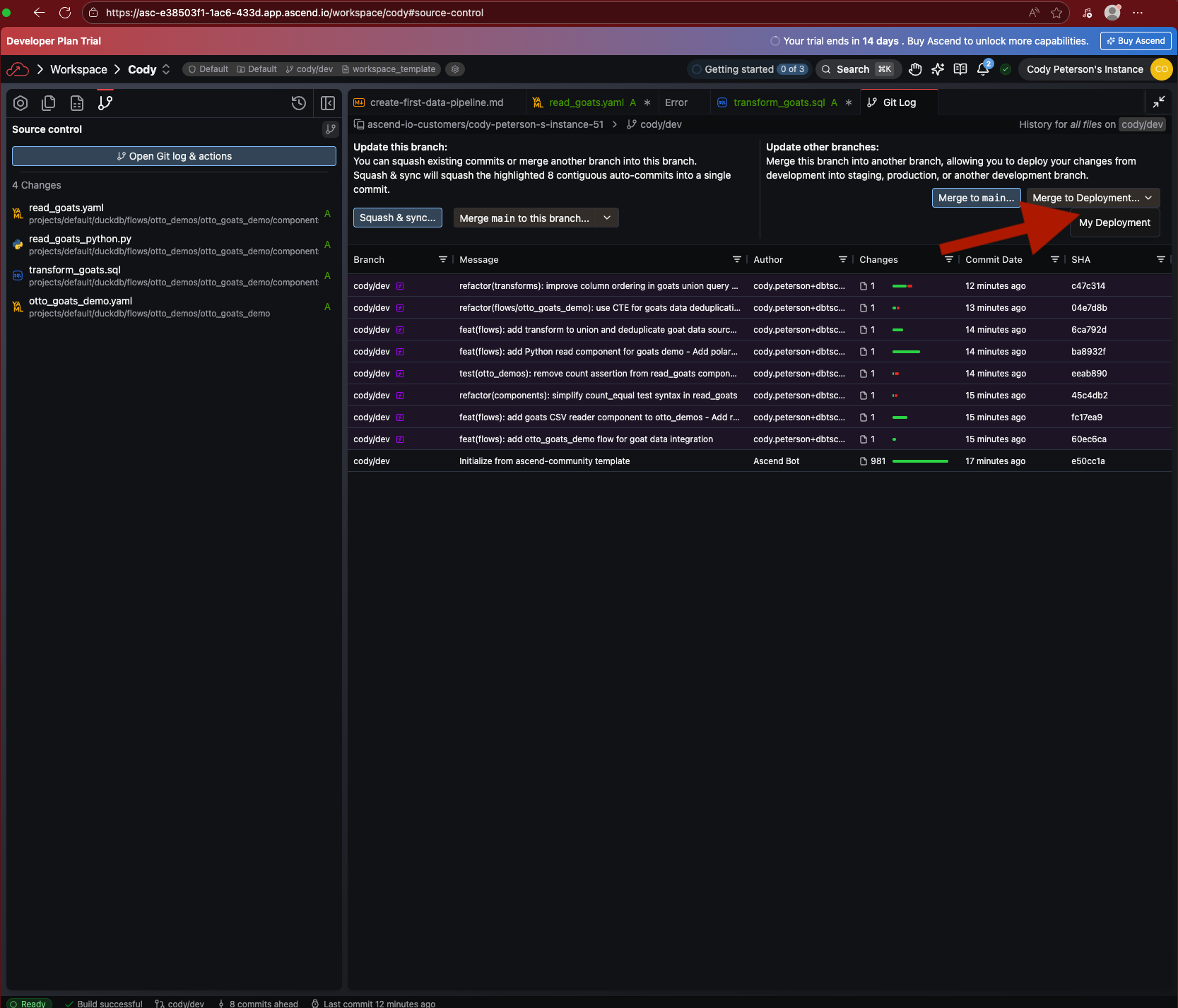
Select your Deployment and confirm the merge.
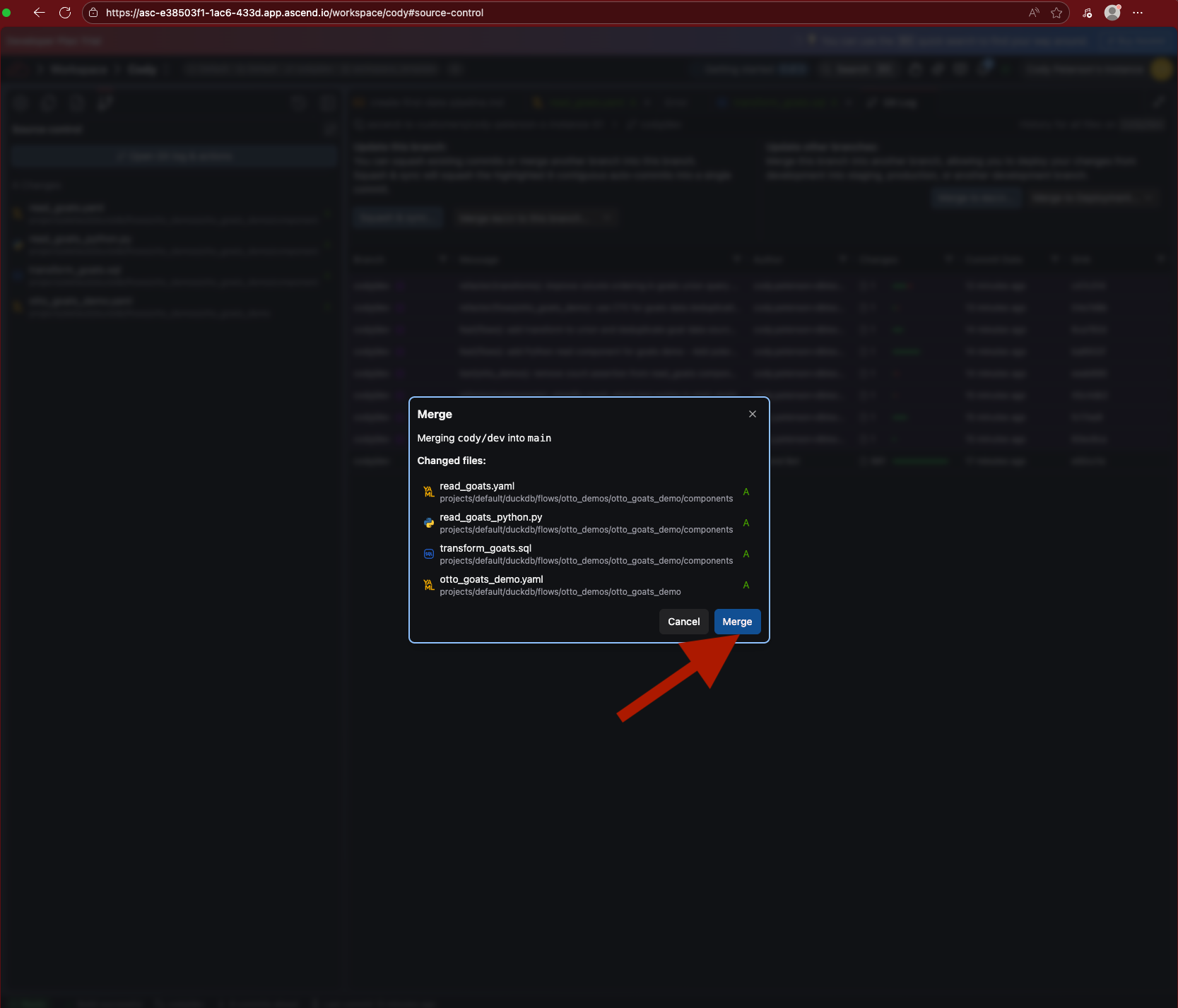
Your changes are now deployed to production.
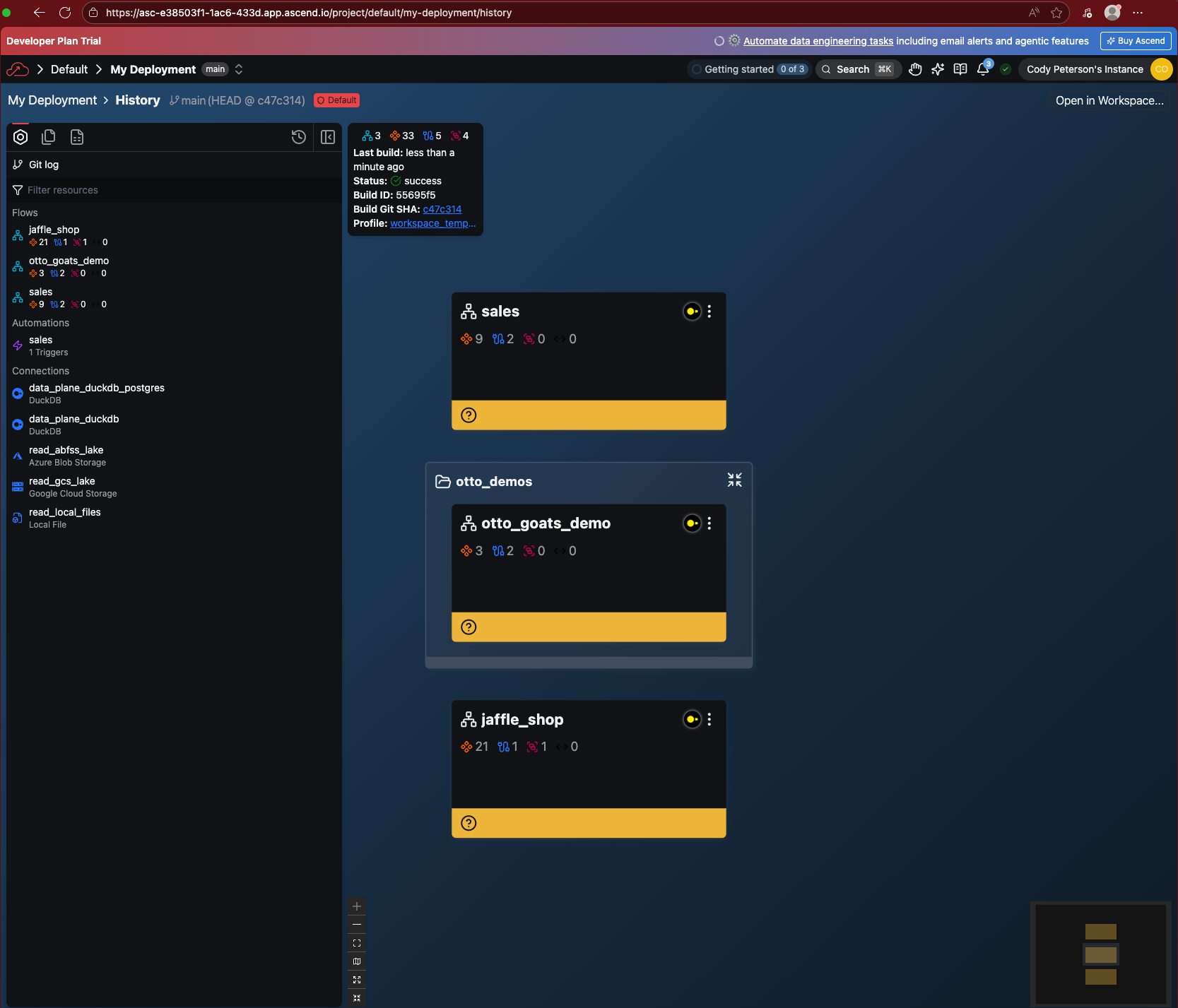
Navigate back to your Deployment (through the Settings, home page, or search) and open the Super Graph. The Jaffle Shop Flow is now present!
Part 7: Run your Flow in production
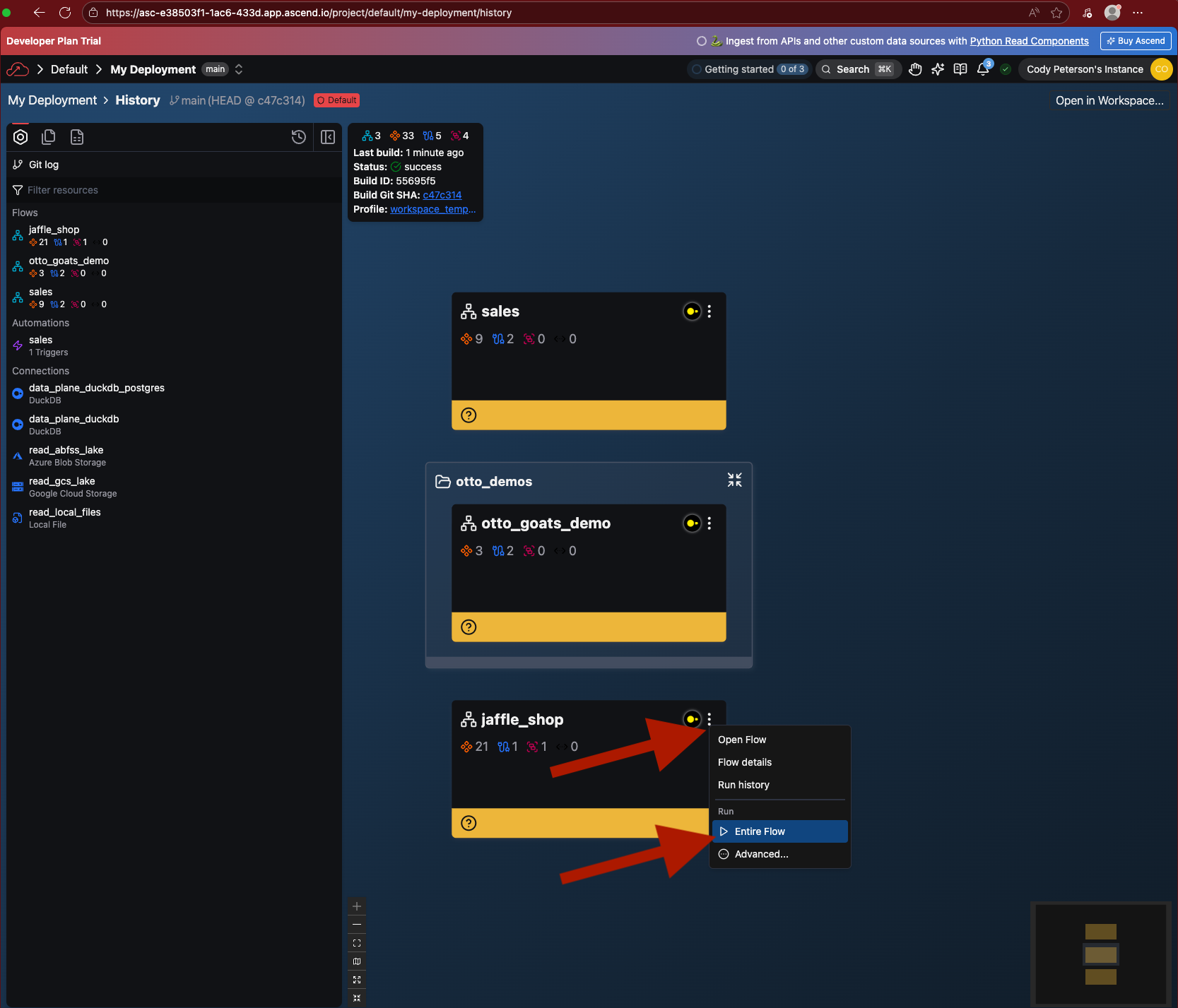
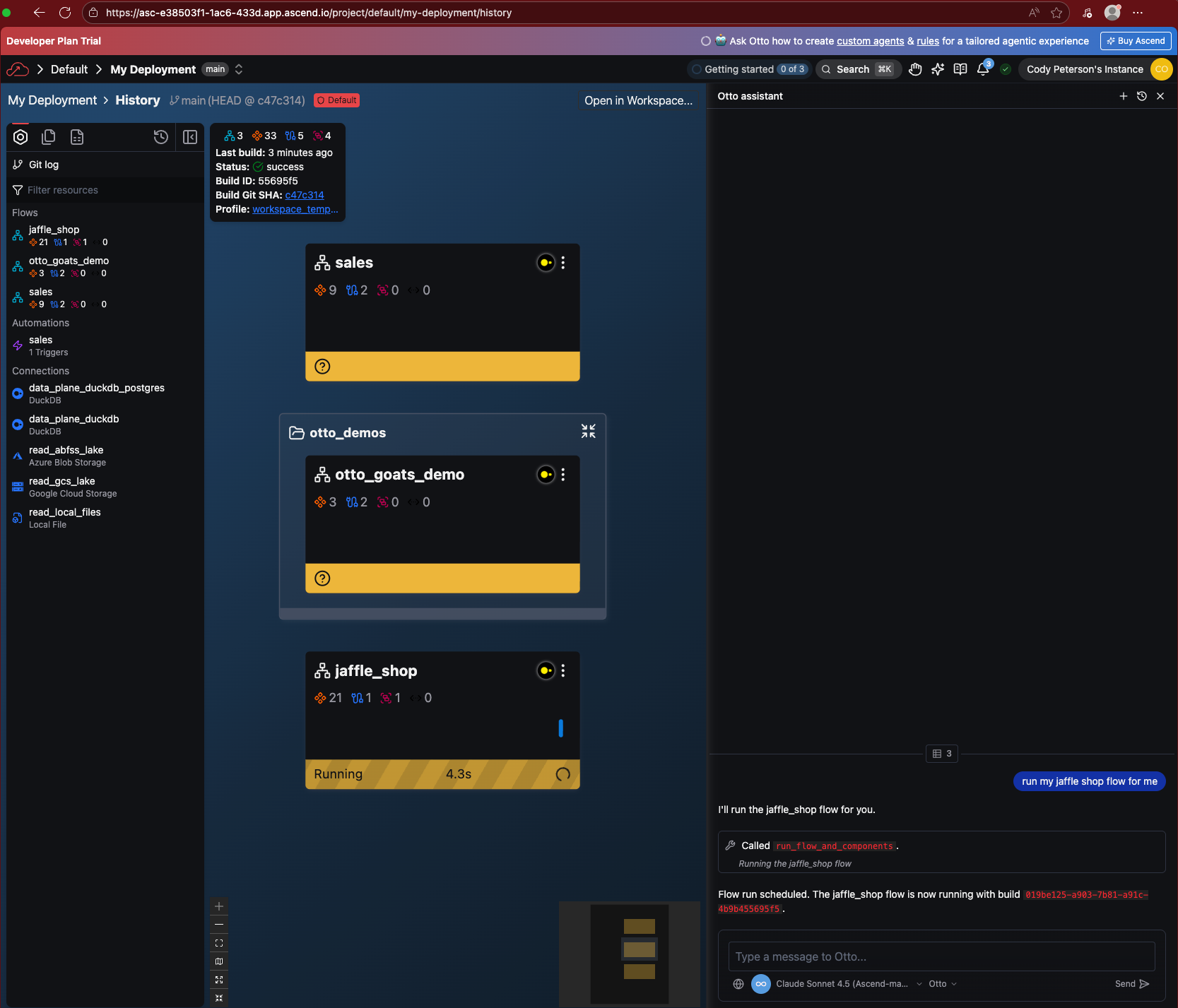
As in a Workspace, you can run the Jaffle Shop Flow yourself or have Otto do it.
Part 8: Automate your pipeline
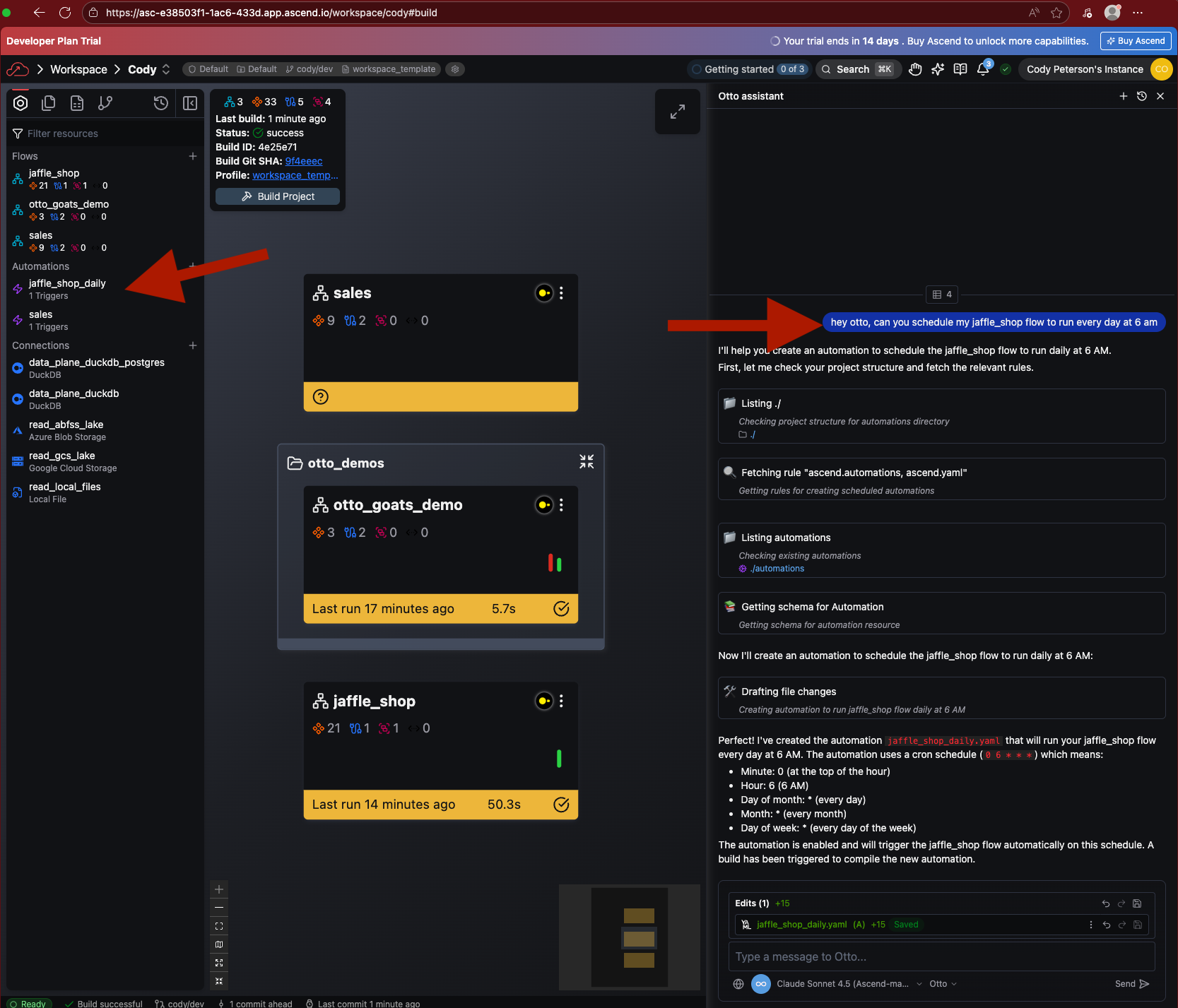
Let's schedule the Jaffle Shop Flow to run every day. Head back to your Workspace. Open Otto with Ctrl + I (or Cmd + I on Mac) or clicking the sparkles icon toward the top right and simply ask:
Schedule the jaffle_shop Flow to run daily at midnight.
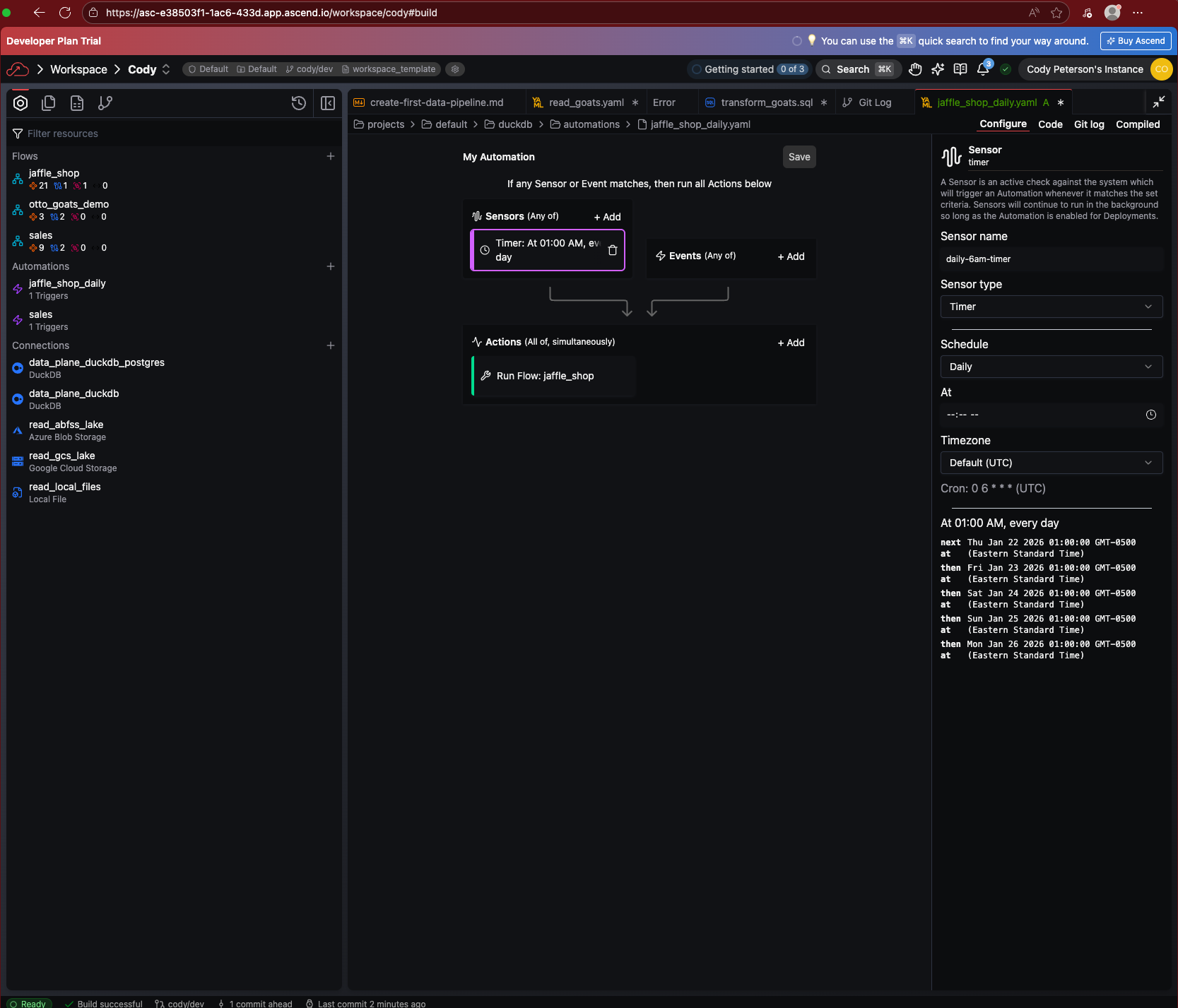
Otto will create an Automation to run your Flow regularly. Automations only run in Deployments, not Workspaces. You can use them for scheduling or event-driven triggers, including triggering custom DataOps agents with access to MCP servers for connecting to your systems like GitHub, Slack, and more!
If you open the Automation, you'll see a Flex Code representation alongside the YAML view.
Now, you can merge these changes into the Deployment as before. Once merged, the Jaffle Shop Flow will run automatically every day at midnight!
After the lab, you may want to disable Automations in your Deployment or delete the Deployment to avoid the use of Ascend Credits. We recommend getting your own Connection created in your Workspace, iterating on your pipeline, then deploying your own Flows.
Part 9: Use your own DataOps agents
For advanced use cases, configure Otto to respond automatically to Flow events — like sending Slack notifications on failures or auto-fixing common issues.
See the Otto Automation guide for details on:
- Event-driven notifications (Slack, email)
- Automatic retry logic
- Custom agent responses
For example, create the file automations/jaffle_shop_failure.yaml with:
automation:
  name: jaffle_shop_failure
  enabled: true
  triggers:
    events:
      - sql_filter: json_extract_string(event, '$.data.flow') = 'jaffle_shop'
        types:
          - FlowRunError
  actions:
    - type: run_otto
      name: run_otto
      config:
        agent_name: chat
        prompt: Send me an email w/ RCA and suggested next steps
Now, if merged into your Deployment, Otto will send you an email on failure with details.
Part 10: Migrating your own dbt projects
To migrate your own dbt projects, you can go in a few directions. If you want to use an existing Git repository, you can add it as an Ascend Repository in your settings. Then, follow our how-to guide and use Otto to assist bootstrapping it for Ascend.
Alternatively (and perhaps more easily) you can build into the Default Project you were working in above. Create an Ascend Connection for your desired Data Plane, and get that working. Then, edit your Jaffle Shop Flow YAML file to use that Data Plane and ensure it's working. Finally, bring your own dbt Project, delete its profiles.yml file, and have Otto help you build a Flow for it.
If you run into issues, contact us for support! We're happy to help.
Wrap up
You've built and orchestrated a dbt pipeline with Ascend:
- Built a pipeline with Otto
- Ran the Jaffle Shop dbt project
- Deployed to production with GitOps
- Set up automated scheduling
Questions? Reach out:
- Cody: cody.peterson@ascend.io
- Jenny: jenny@ascend.io
- Sales: sales@ascend.io
- Support: support@ascend.io