Breakout: MotherDuck
Connect Ascend to MotherDuck to run your data pipelines on the serverless DuckDB cloud.
In this session, you'll set up a MotherDuck account (if needed), create an API key, and configure a MotherDuck Data Plane Connection to run your pipelines. You'll also explore MotherDuck's capabilities to enhance your existing flow.
Prerequisites
Before you begin, ensure you have:
- Completed Hands-On Session #1
- If you'd like to use your own MotherDuck account, you'll need a MotherDuck account with permissions to create databases and access tokens
You can sign up for a free MotherDuck account which includes generous free tier usage.
Step 1: Sign up for MotherDuck
If you don't already have a MotherDuck account, follow these steps to get started.
Skip ahead to Step 2: Create a MotherDuck API key.
Create a MotherDuck account
- Go to app.motherduck.com
- Sign up using your preferred authentication method (Google, GitHub, or email)
- Complete the onboarding steps
MotherDuck's free tier includes generous compute and storage limits, perfect for exploring and learning.
Step 2: Create a MotherDuck API key
You'll need an API key to allow Ascend to connect to your MotherDuck account.
- In the MotherDuck UI, click the dropdown in the top left corner
- Navigate to Settings
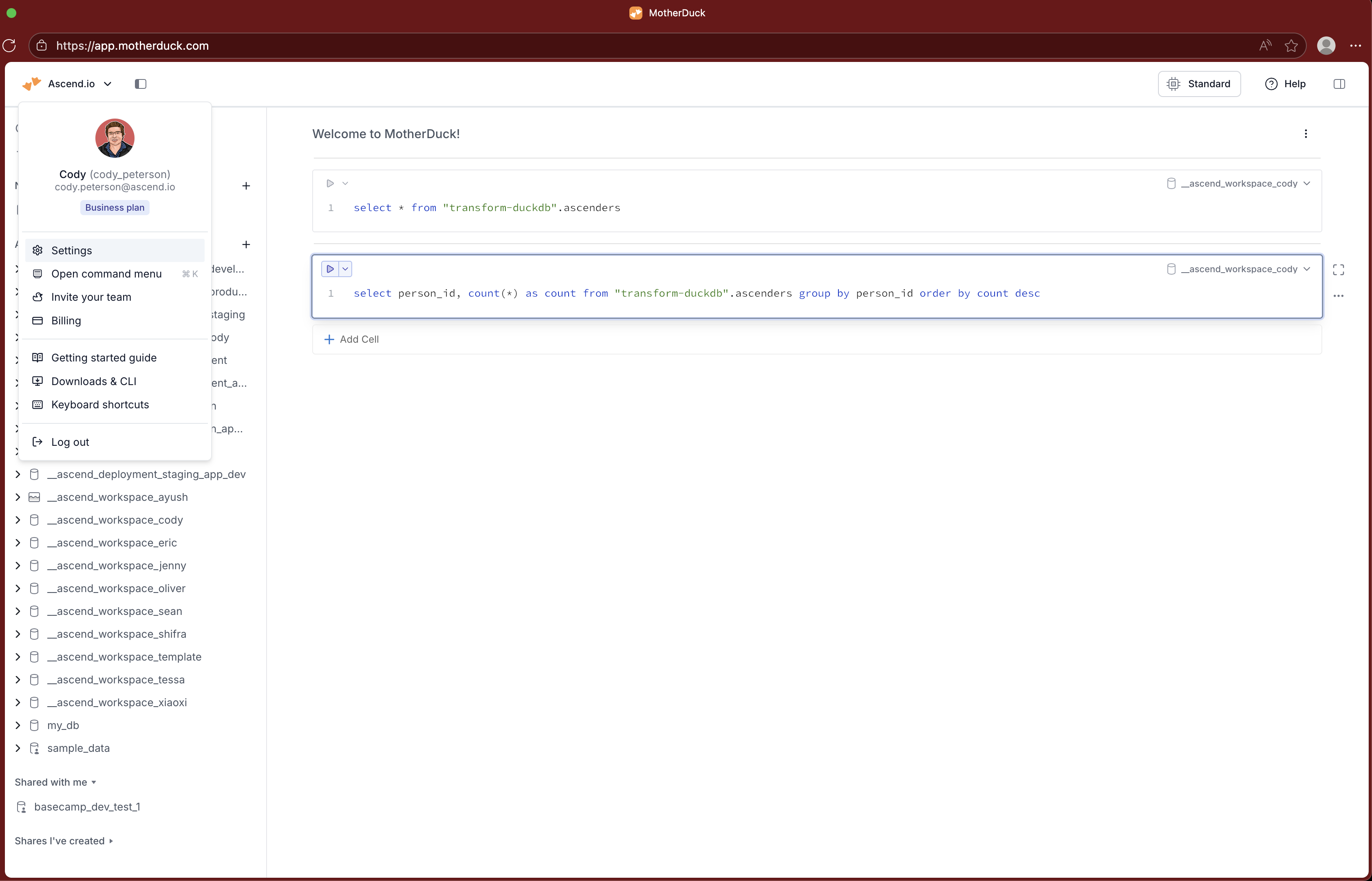
- Click on Access Tokens in the left sidebar

- Click Create Token
- Give your token a descriptive name (e.g.,
ascend-bootcamp) - Your token will be displayed — you'll need it in the next step

Don't copy the token yet — leave this dialog open. You'll need the token in the next step.
Step 3: Connect Ascend to MotherDuck
- The easy way
- The hard way
Copy and paste this prompt to Otto:
Help me switch my DuckDB Connection to MotherDuck. We'll then want to update our otto.yaml to enable the MotherDuck MCP server. See mcp.yaml for the secret name we should be using. Create a form asking for the MotherDuck API key & whether I want the MCP server enabled; store the secret in the default Environment Vault. After I submit the form, update the Connection and test it (check the file). Once it's working, run my sales Flow to confirm all is well. Query the Component. Finally, update otto.yaml to enable the MCP server if I opted into that.
In the form, enter your MotherDuck token from the previous step. Otto will take it from there!
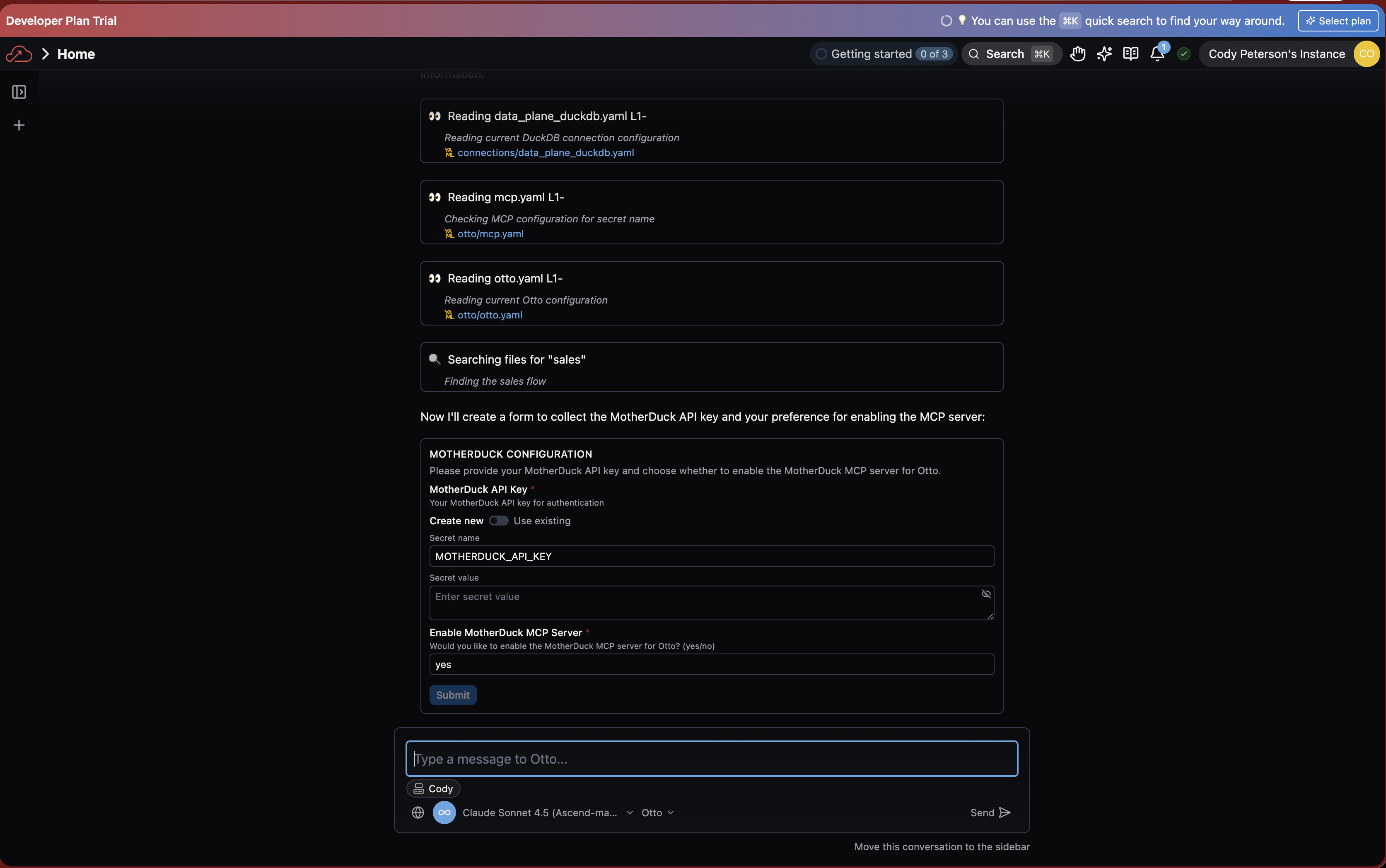
Secret values in Otto forms are never seen by Otto or the underlying AI service providers. Form secret values go directly to secure vaults.
Never paste secrets directly into Otto (or any AI) chat. Always use forms or the Ascend UI to manage secrets securely.
Store the API key in Ascend
Store your MotherDuck API key as an Environment Vault secret:
- In the Ascend UI, click on your profile picture in the top-right corner and select Settings
- Navigate to Secrets & Vaults > Environment Vaults
- Select the Default Environment Vault
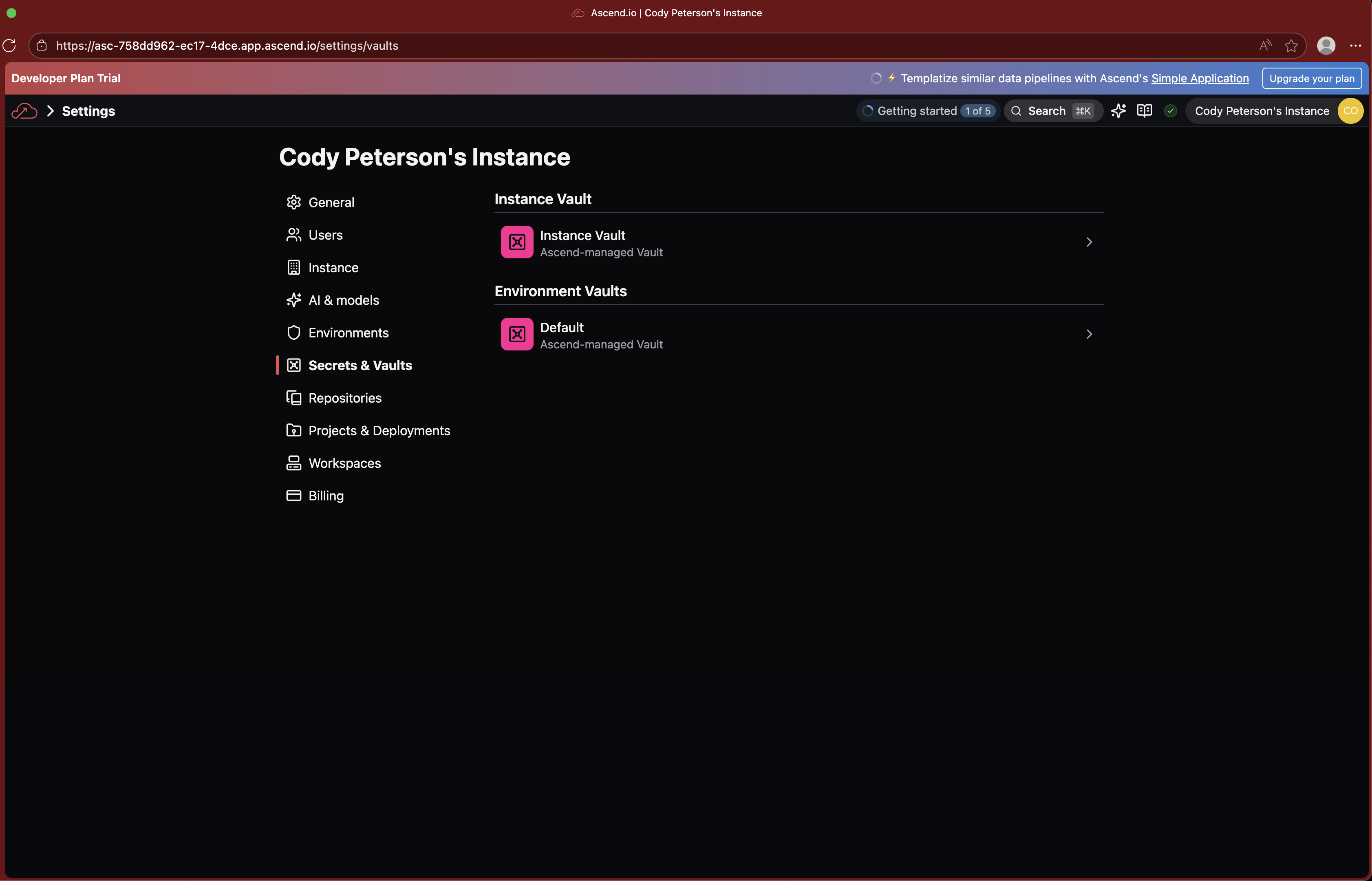
- Click Add Secret
- Name your secret
MOTHERDUCK_API_KEYand paste the API key you created in MotherDuck

- Click Create to store your secret
Create a MotherDuck Connection in Ascend
Now let's connect Ascend to your MotherDuck account. Navigate to your Workspace in Ascend and choose your preferred method:
- Ask Otto
- Use the UI
- Create a file
Open Otto and ask:
Connect to my MotherDuck account using the API key stored in MOTHERDUCK_API_KEY
Otto will create the Connection configuration for you.
- Navigate to your Workspace in Ascend
- From the Super Graph, click the + button next to Connections
- Select DuckDB as the connection type, then choose MotherDuck
- Fill in the connection details:
- Name:
data_plane_motherduck - API Key: Select
MOTHERDUCK_API_KEYfrom the vault dropdown (or enter${vaults.environment.MOTHERDUCK_API_KEY})
- Name:
- Click Test Read Connection to verify it works
- Save the connection
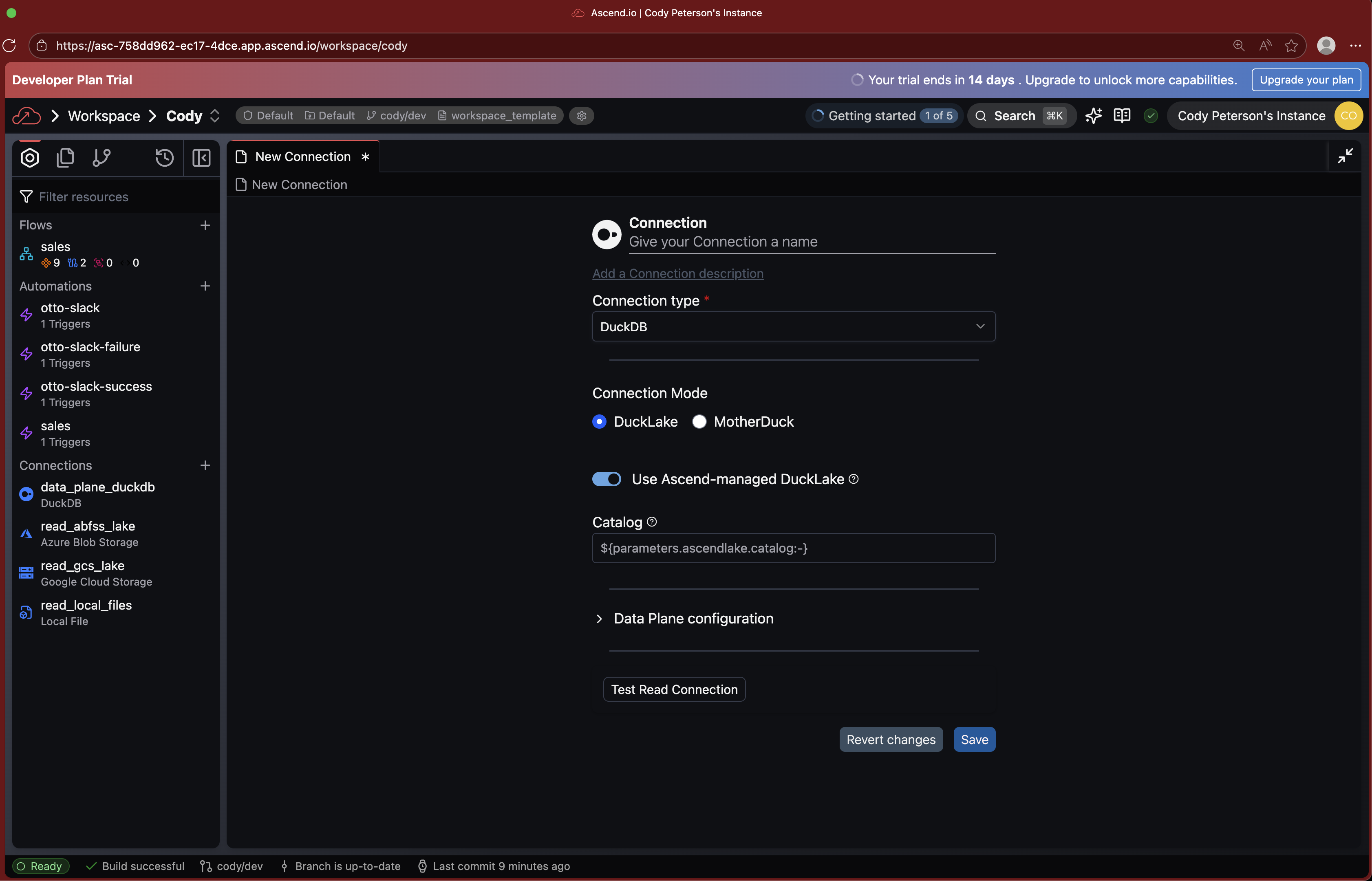
If you don't see the Connections section, you may be in a Flow Graph. Use Cmd+K to search for "Super Graph" and navigate there.
Create a file connections/data_plane_motherduck.yaml in your Project:
connection:
  duckdb:
    motherduck:
      api_key: ${vaults.environment.MOTHERDUCK_API_KEY}
Save the file and Ascend will automatically detect the new Connection.
Set MotherDuck as the default Data Plane
To use MotherDuck for all your Flows, update your project defaults.
You can ask Otto to do this for you:
Set MotherDuck as the default Data Plane for all Flows
or do this manually:
- Open the
ascend_project.yamlfile in your Project - Add or update the
defaultssection:
This tells Ascend to use MotherDuck for all Flows by default, while keeping any Flows ending in -duckdb on the Ascend-managed DuckDB Data Plane.
Run a pipeline on MotherDuck
Let's verify everything is working by running the demo pipeline on MotherDuck.
- Navigate to the
salesFlow in your Workspace - Click Run Flow or use Otto to trigger a run
- Watch the pipeline execute on MotherDuck
- Check the data in the MotherDuck Console to confirm it was written
You can also ask Otto: "Run the sales flow" or "Show me the data in the customers table"
Explore MotherDuck capabilities
MotherDuck provides powerful capabilities that can enhance your data pipelines. Let's explore some options with Otto:
What are some ways I can take advantage of MotherDuck features in this flow?
Some MotherDuck capabilities to explore:
- Hybrid execution — Query local DuckDB files alongside MotherDuck cloud data
- Data sharing — Share databases with teammates without copying data
- MotherDuck UI — Explore and query your data directly in the browser
Ask Otto to implement any features that interest you!
Checkpoint
By the end of this session, you should have:
- A MotherDuck account
- Created and stored a MotherDuck API key in Ascend
- Created a MotherDuck Data Plane Connection in Ascend
- Set MotherDuck as the default Data Plane
- Successfully run a pipeline on MotherDuck
Ask a bootcamp instructor or reach out in the Ascend Community Slack.
Next steps
Return to the Bootcamp Overview to continue with Day 2 sessions, or explore more MotherDuck features with Otto!