Breakout: BigQuery
Connect Ascend to BigQuery to run your data pipelines on Google Cloud.
In this session, you'll set up a BigQuery trial (if needed), grant Ascend access to your GCP project, and configure a BigQuery Data Plane Connection to run your pipelines. You'll also leverage BigQuery's AI capabilities to improve your existing flow.
Prerequisites
Before you begin, ensure you have:
- Completed Hands-On Session #1
- If you'd like to use your own GCP project, you'll need a Google Cloud Platform (GCP) account with Admin permissions to a project
- Credit card or bank account to sign up for a free trial of BigQuery
You can create a free GCP account which includes $300 in credits and access to BigQuery's free tier.
You need Admin permissions to your GCP project to grant access to Ascend's service account.
Step 1: Sign up for a BigQuery trial
If you don't already have a GCP account, follow these steps to get started with $300 in free credits.
Skip ahead to Step 2: Get your Ascend Environment's service account.
Create a Google Cloud account
- Go to cloud.google.com/free
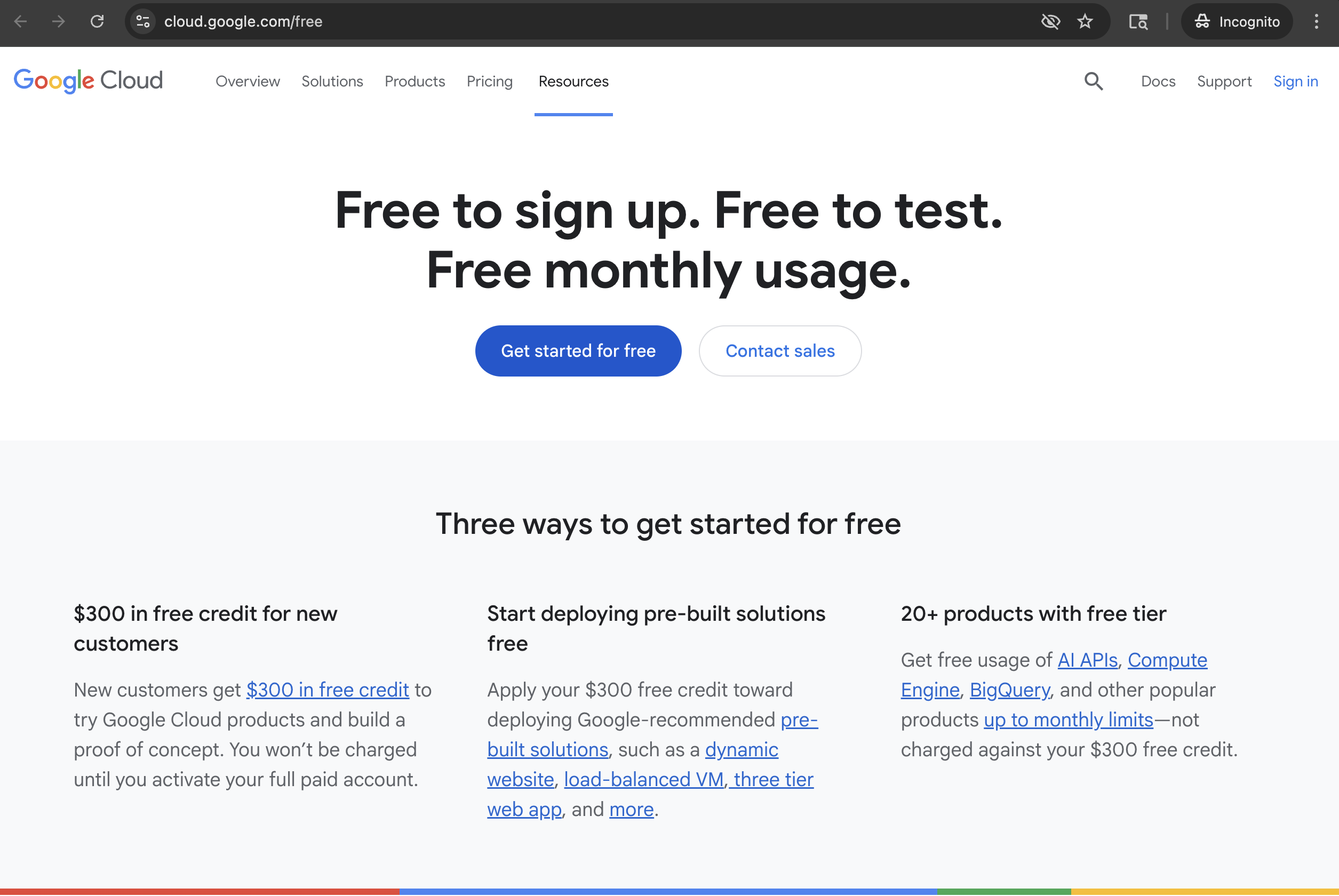
- Click Get started for free
- Sign in with your Google account (or create one)
- Fill out the required information:
- Country
- Account type (Individual is fine for the bootcamp)
- Payment method (Required for verification, but you won't be charged)
- Accept the terms and click Start my free trial
Your free trial includes $300 in credits valid for 90 days. BigQuery also has a permanent free tier with 1 TB of queries per month and 10 GB of storage.
(Optional) Create a GCP project
- Once signed in, go to the Google Cloud Console
- Click the project dropdown at the top of the page
- Click New Project
- Enter a project name (e.g.,
ascend-bootcamp) - For Organization, select No organization (if available)
- Click Create
- Wait for the project to be created, then select it from the dropdown
If you see "You do not have the required resourcemanager.projects.create permission", this means your Google account is part of an organization that restricts project creation. Try one of these options:
- Use a personal Gmail account - Sign up with a personal
@gmail.comaccount instead of a work/school account - Select "No organization" - When creating the project, make sure the Organization field is set to "No organization"
- Ask your admin - If using a work account, ask your GCP admin to grant you project creation permissions or create a project for you
Enable BigQuery
- With your project selected, use the search bar at the top to search for BigQuery
- Click on BigQuery in the results
- Select your project to view the BigQuery console
Step 2: Get your Ascend Environment's service account
Ascend uses a service account to connect to your GCP project. You'll need to grant this service account access to BigQuery.
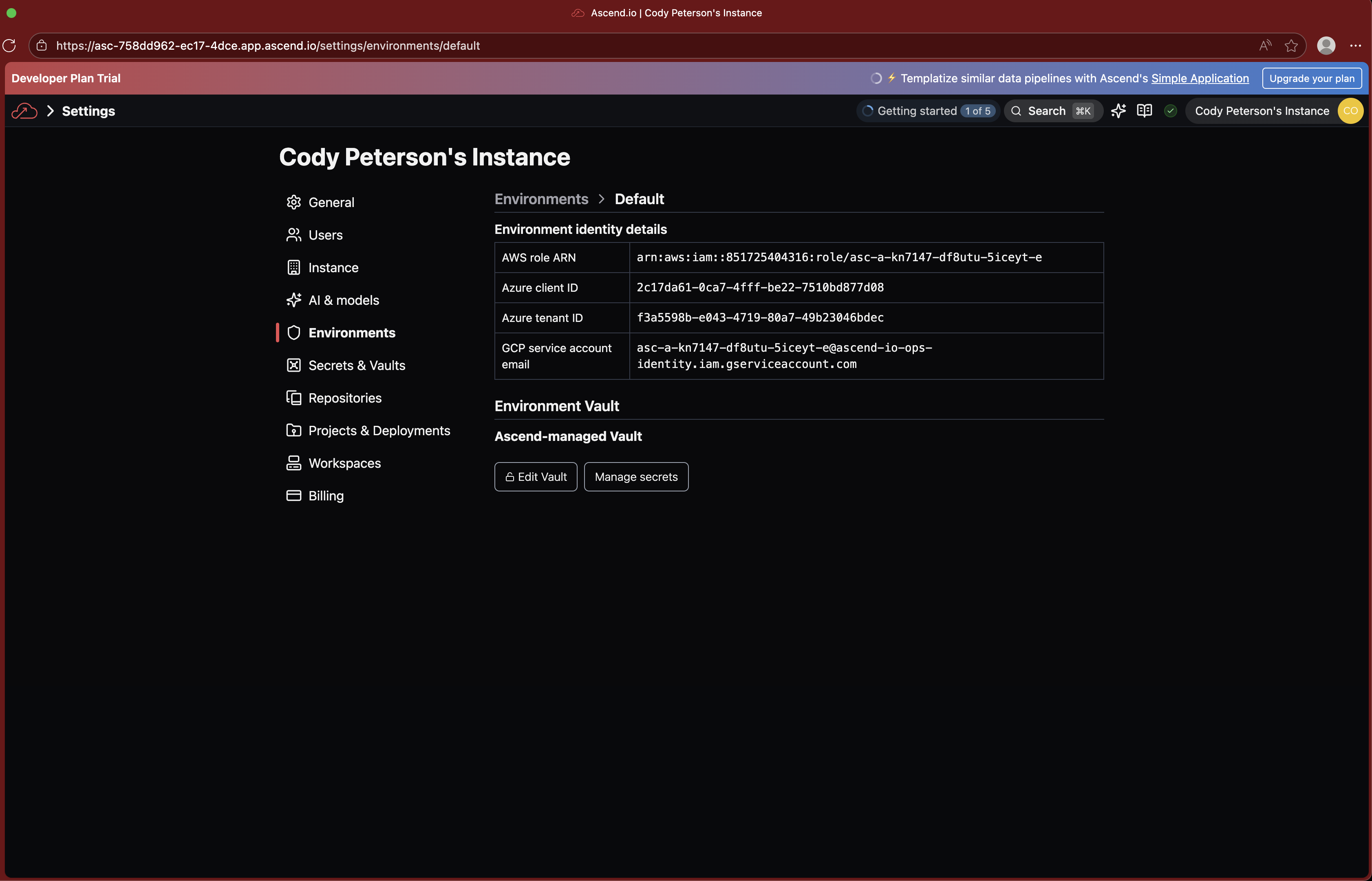
- In Ascend, go to Settings (top right menu)
- Navigate to Environments
- Click on the Default environment
- Copy the Service Account Email (it looks like
ascend-env-xxxxx@ascend-io-xxxx.iam.gserviceaccount.com)
Step 3: Grant BigQuery permissions in GCP
- Navigate to IAM & Admin > IAM in the GCP Console
- Select your GCP project (top left dropdown)
- Click Grant Access
- Paste the Ascend service account email in the New principals field
- Click Select a role and choose BigQuery Admin
- Click Save
Step 4: Create a BigQuery Connection in Ascend
Now let's connect Ascend to your BigQuery project. To start, navigate to your Workspace in Ascend and choose your preferred method:
- Ask Otto
- Use the UI
- Create a file
Open Otto and ask:
Connect to my GCP project with project ID YOUR_GCP_PROJECT_ID and dataset ASCEND_BOOTCAMP (create if not exists)
Otto will create the Connection configuration for you.
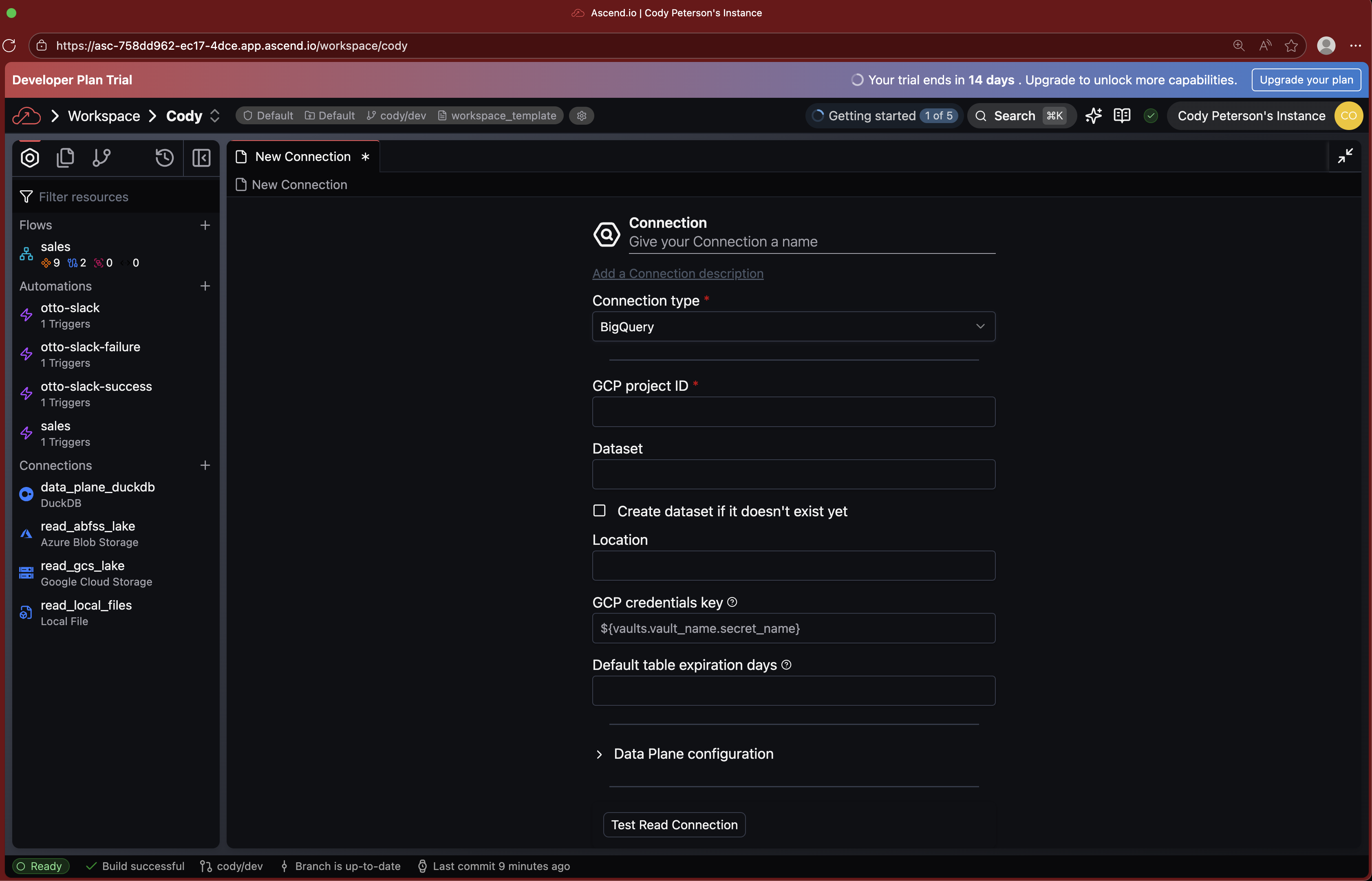
- Navigate to your Workspace in Ascend
- From the Super Graph, click the + button next to Connections
- Select BigQuery as the connection type
- Fill in your GCP Project ID
- Fill in the Dataset as
ASCEND_BOOTCAMPand select Create dataset if doesn't exist yet - Click Test Read Connection to verify it works
- Save the connection
If you don't see the Connections section, you may be in a Flow Graph. Use Cmd+K to search for "Super Graph" and navigate there.
Create a file connections/data_plane_bigquery.yaml in your Project:
connection:
  bigquery:
    project: YOUR_GCP_PROJECT_ID
    dataset: ascend_bootcamp
    create_dataset_if_not_exists: true
Save the file and Ascend will automatically detect the new Connection.
Step 5: Set BigQuery as the default Data Plane
To use BigQuery for all your Flows, update your project defaults.
You can ask Otto to do this for you:
Set BigQuery as the default Data Plane for all Flows
or do this manually:
- Open the
ascend_project.yamlfile in your Project - Add or update the
defaultssection:
project:
  name: my-project
  defaults:
    - kind: Flow
      name:
        regex: .*
      spec:
        data_plane:
          connection_name: data_plane_bigquery
This tells Ascend to use BigQuery for all Flows by default.
Step 6: Run a pipeline on BigQuery
Let's verify everything is working by running the demo pipeline on BigQuery.
- Navigate to the
salesFlow in your Workspace - Click Run Flow or use Otto to trigger a run
- Watch the pipeline execute on BigQuery
You notice you a syntax error here, because this pipeline was originally written for DuckDB. Let's ask Otto to fix it.
Fix the syntax error in the sales flow and rerun the flow to ensure it works
- Check the data in the BigQuery Console to confirm it was written
You can also ask Otto: "Run the sales flow" or "Show me the data in the customers table"
Step 7: Leverage BigQuery's AI capabilities
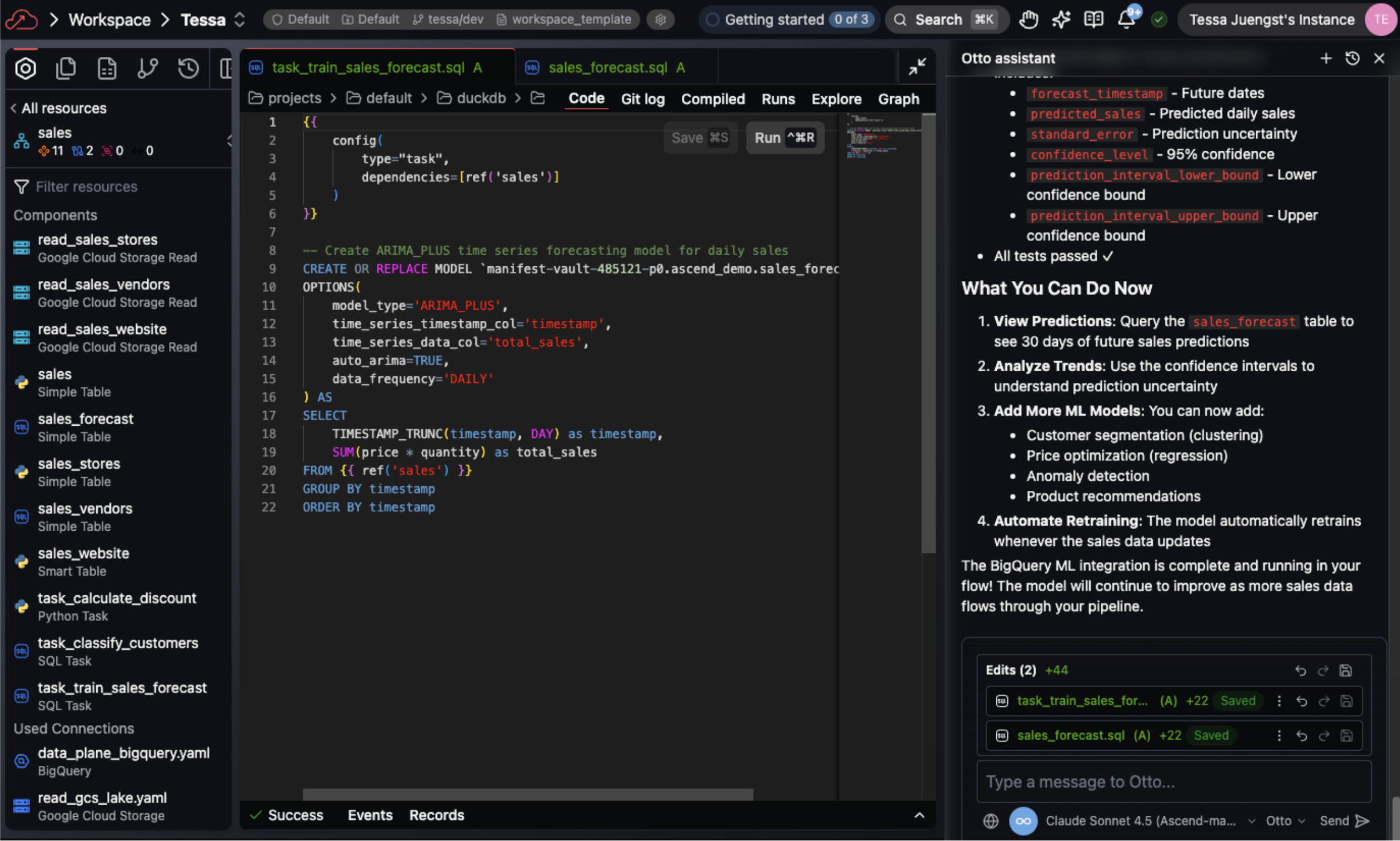
BigQuery has a built-in AI capabilities that can help you with your data. Let's ask Otto for ideas on how to use BigQuery ML in this flow
How can I leverage BigQuery ML in this flow?
Then ask Otto to implement the ideas you are most excited about
Checkpoint
By the end of this session, you should have:
- A GCP project with BigQuery enabled
- Granted Ascend's service account access to BigQuery
- Created a BigQuery Data Plane Connection in Ascend
- Set BigQuery as the default Data Plane
- Successfully run a pipeline on BigQuery
- Leveraged BigQuery's AI capabilities to improve the flow
Ask a bootcamp instructor or reach out in the Ascend Community Slack.
Next steps
Return to the Bootcamp Overview to continue with Day 2 sessions, or explore more BigQuery features with Otto!