S3
This guide shows you how to create an S3 Connection in Ascend.
Prerequisites
- Ascend Project
- Ascend Workspace
- Credentials for your AWS account
- Access Key: The AWS access key to use for the S3 Connection.
- Secret Access Key: The secret access key associated with the access key.
Create an S3 Connection
From your Workspace Super Graph view, follow these steps:
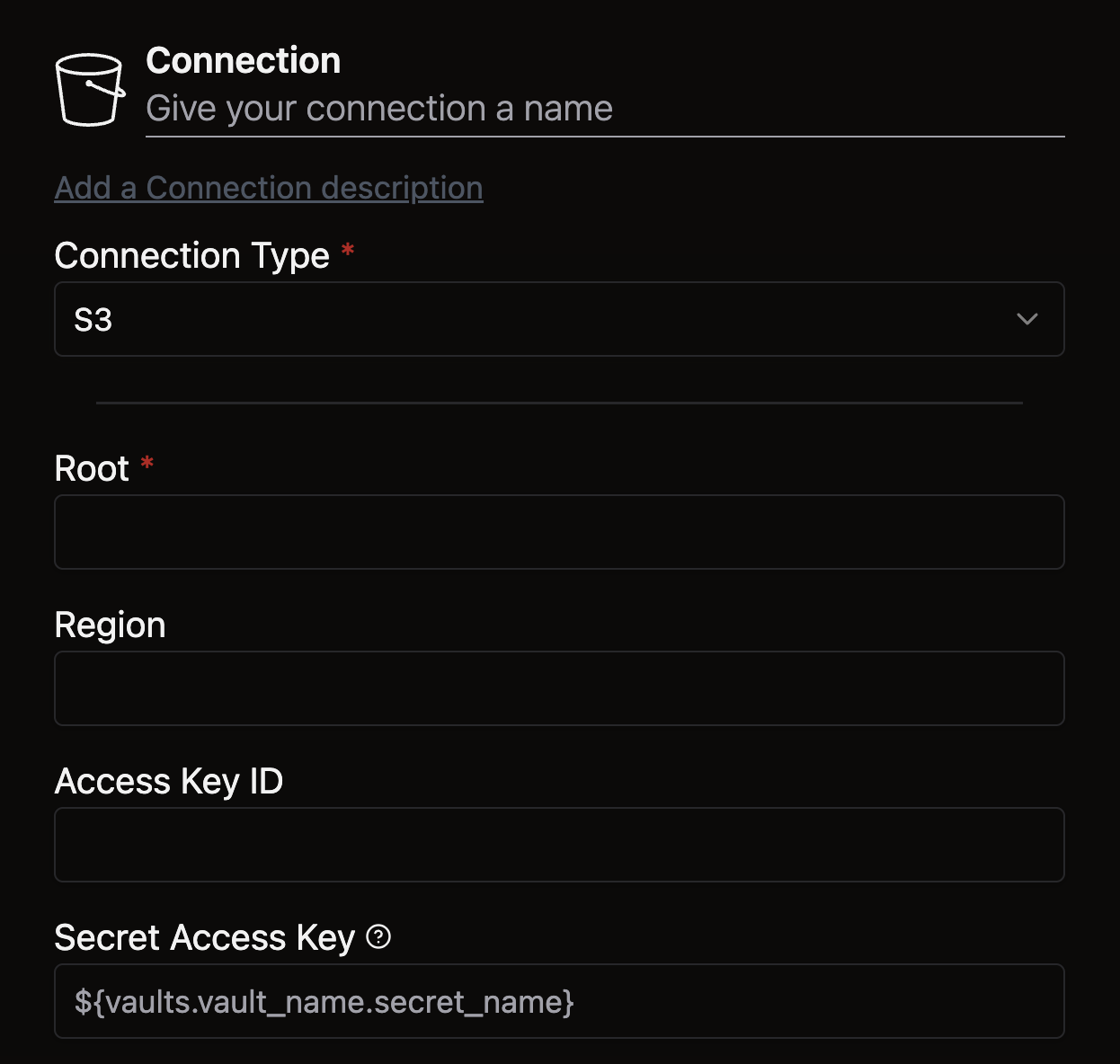
- Form
- Files panel
- Create a Connection by either:
- Clicking the + button next to Connections in the left Build panel

- Right-clicking in the Super Graph and selecting Create Connection

- Clicking the + button next to Connections in the left Build panel
- Select S3 from the available options
- Enter a descriptive name like
read_s3 - Fill in the required fields (and any optional fields as needed)
- Click Save at the bottom to create your Connection
- Open the Files panel in the top left
- Right-click the
connectionsdirectory and select New File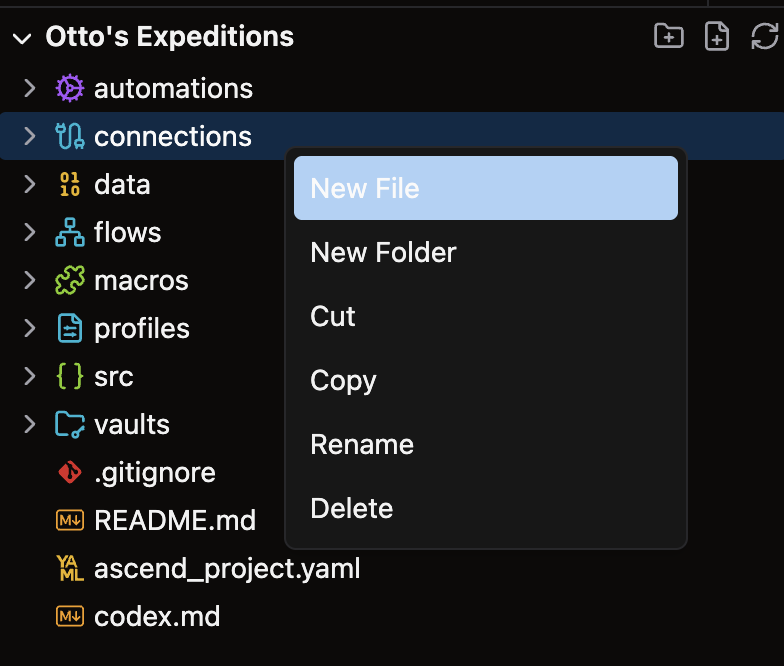
- Give your file a descriptive name like
read_s3.yaml
For complete configuration options, see our Connection reference guide.
Example
Use the following YAML template for your S3 Connection. Customize the highlighted values with your specific Connection details:
/my_project/connections/s3_connection.yaml
connection:
  s3:
    root: <root_path_to_bucket>
    aws_access_key_id: ${vaults.<your_vault>.<access_key>}
    aws_secret_access_key: ${vaults.<your_vault>.<secret_access_key>}
S3-compatible services
S3 Connections also work with S3-compatible services such as DigitalOcean Spaces, Wasabi, and MinIO. Set the endpoint_url to your provider's endpoint and addressing_style to path (required by most S3-compatible services):
/my_project/connections/digitalocean_spaces.yaml
connection:
  s3:
    root: <YOUR_SPACES_BUCKET>
    endpoint_url: https://<YOUR_REGION>.digitaloceanspaces.com
    addressing_style: path
    aws_access_key_id: ${vaults.<your_vault>.<access_key>}
    aws_secret_access_key: ${vaults.<your_vault>.<secret_access_key>}
🎉 Congratulations, you just set up an S3 Connection in Ascend!