Run ad-hoc SQL queries with Worksheets
This feature is in Public Preview. Expect changes and note that standard SLAs don't apply. Refer to our release stages to learn more.
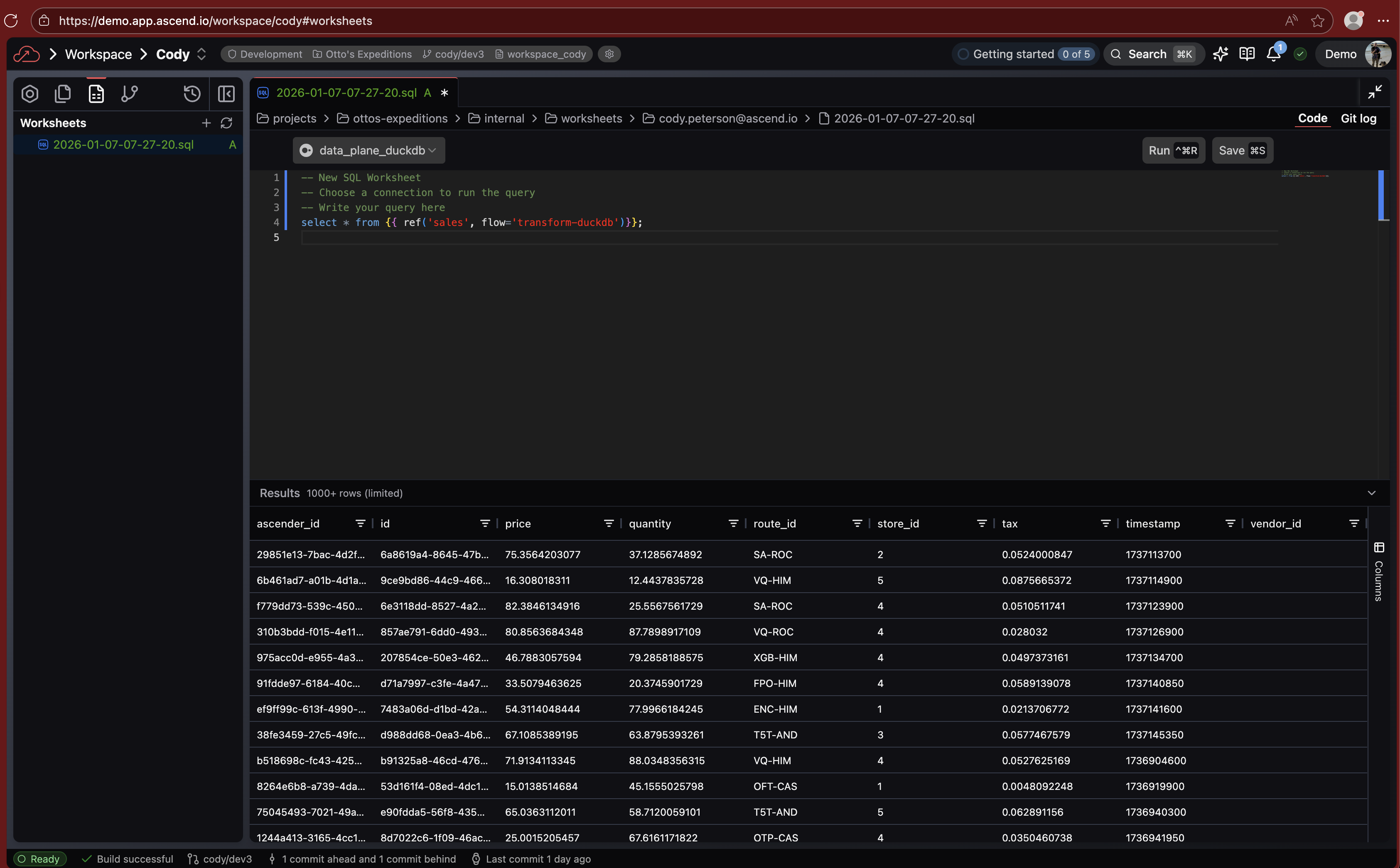
Worksheets let you run SQL queries directly against your Data Plane from the Ascend UI — no Flow or Component required.
Create a Worksheet
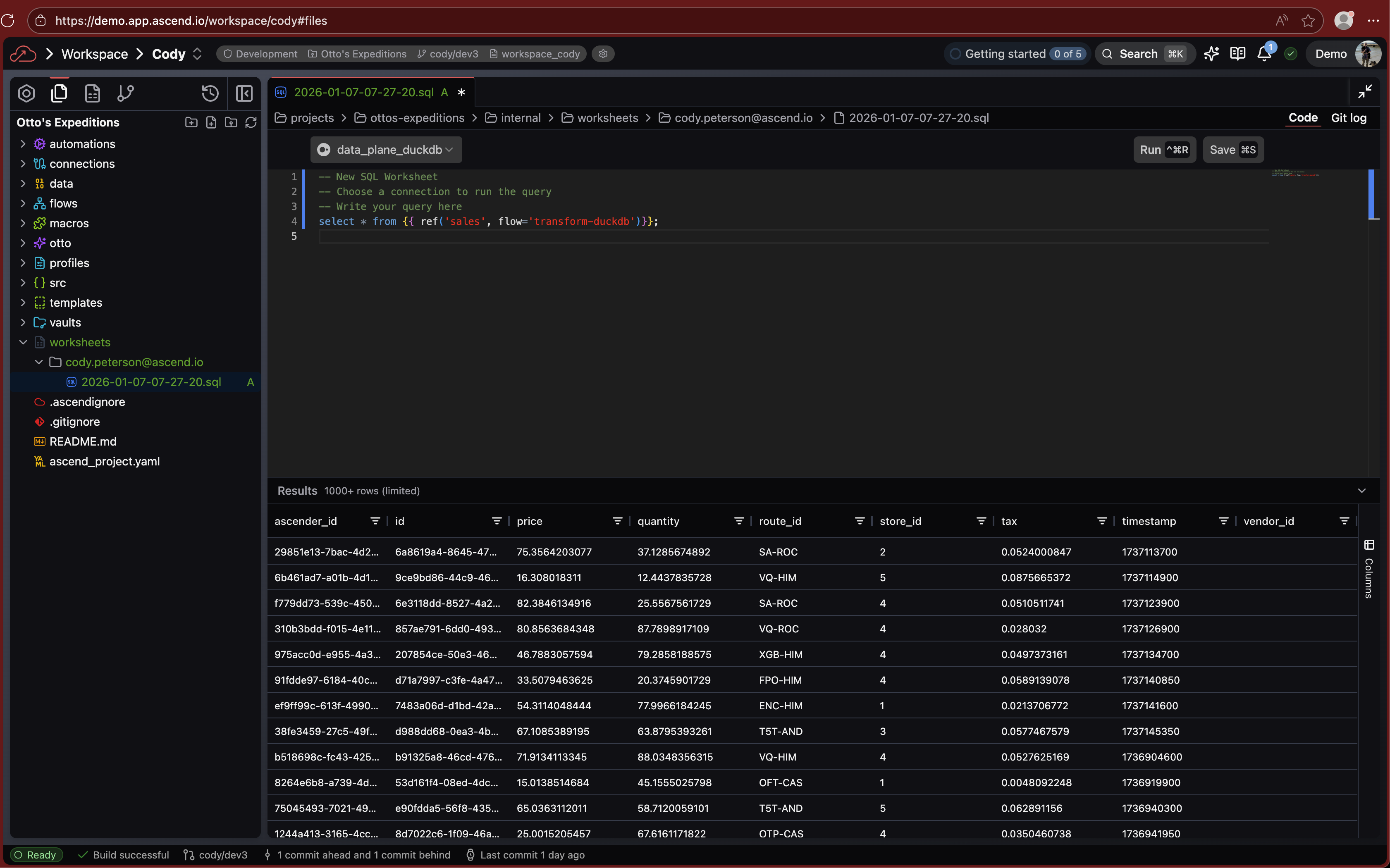
Click the + button in the Worksheets toolbar tab to create a new Worksheet, or create a .sql file manually in the worksheets/ directory. Select a Connection from the dropdown to choose which Data Plane to query.
Worksheets are stored per-user in worksheets/<your-email>/. They're just regular .sql files — rename or reorganize them however you like. Saving doesn't trigger a build since they're not part of your pipeline.
You can run Worksheets in Deployments to query production data, but you cannot save changes — file editing is disabled in Deployments.
Run queries
Run query at cursor
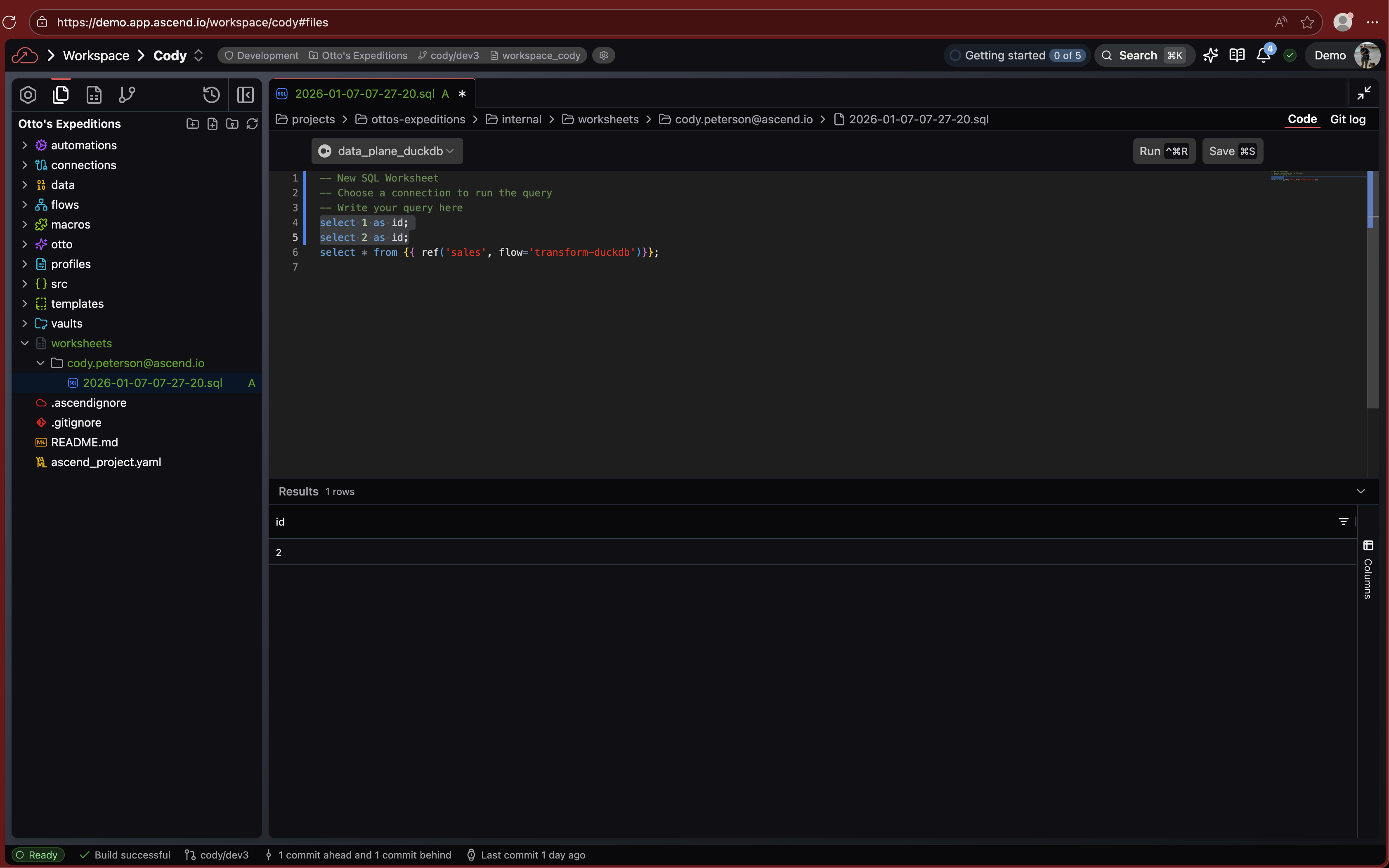
Position your cursor inside a query and click Run. A highlight bar shows which query will execute.
Run multiple queries
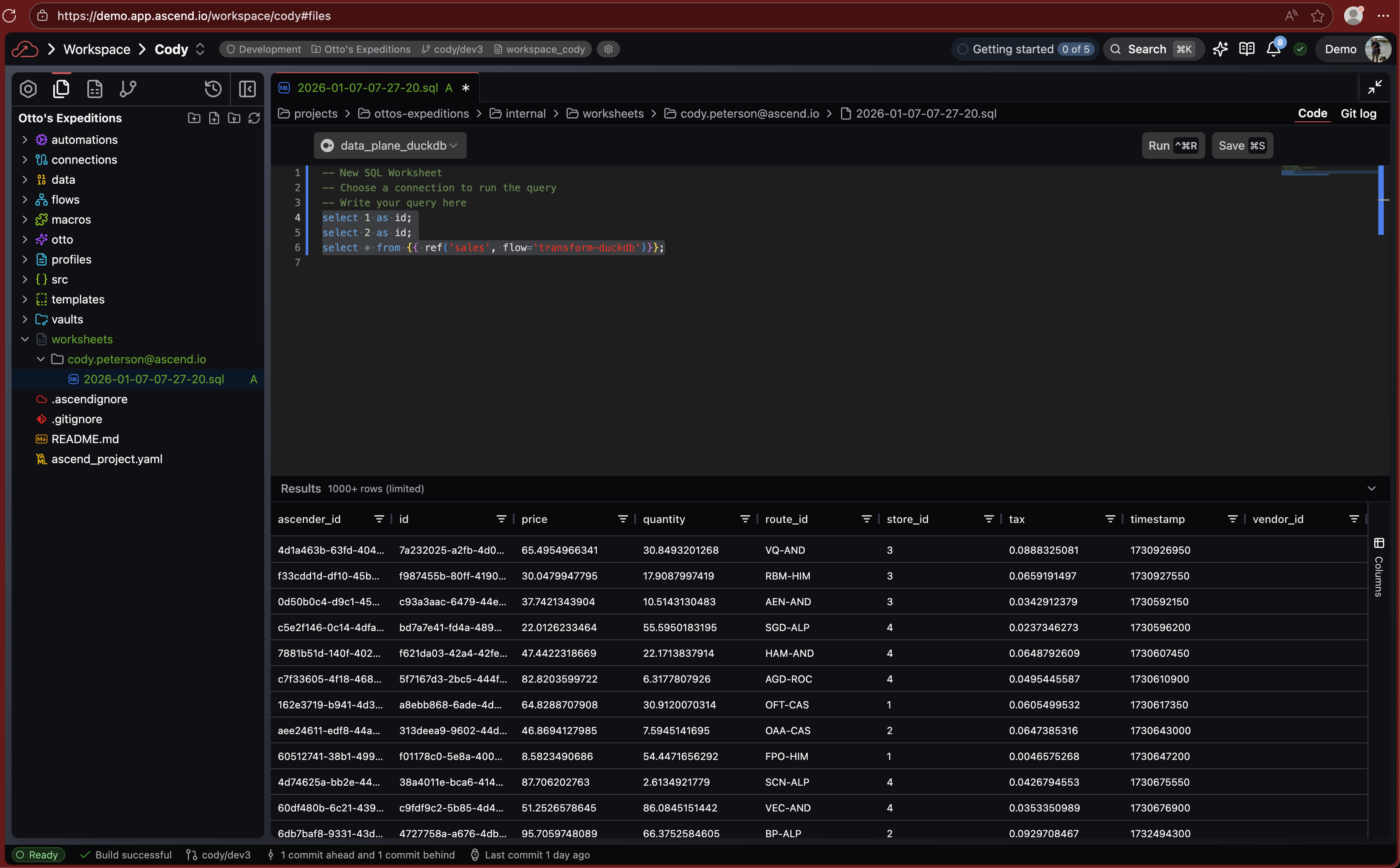
Select multiple queries to execute them in sequence. The results panel shows output from the last query in the sequence.
Reference Components
Query data from your Components using the ref() function:
SELECT *
FROM {{ ref('sales', flow='transform-duckdb') }}
WHERE created_at > '2026-01-01'
The flow parameter is required. The Connection must match the Flow's Data Plane.
All Jinja-SQL features work in Worksheets — including macros and other templating.
All referenced Components must be on the same Data Plane. You cannot join data across different Data Planes in a single query.
View results
Query results appear in an expandable panel below the editor showing:
- Tabular data
- Row count
- Error messages (if query fails)
Next steps
- SQL Transforms — build reusable SQL Components
- Cross-Flow references — reference Components across Flows